This article was written by Darlene Antonelli, MA. Darlene Antonelli is a Technology Writer and Editor for wikiHow. Darlene has experience teaching college courses, writing technology-related articles, and working hands-on in the technology field. She earned an MA in Writing from Rowan University in 2012 and wrote her thesis on online communities and the personalities curated in such communities.
This article has been viewed 2,488 times.
Deezer is a music-streaming service offered by Microsoft. This wikiHow will show you how to download Deezer to your iOS, Android, or computer.
Steps
Method 1
Method 1 of 3:Downloading Deezer on Mobile
-
1
-
2Search "Deezer." In the Google Play Store, you'll find the search bar centered at the top of your screen. In the App Store, you'll find the tab to open search along the bottom of your screen.Advertisement
-
3Tap the search result "Deezer Music Player." You'll see the developer listed as "Deezer SA" or "Deezer Mobile."
-
4Tap Install (Google Play Store) or Get (App Store). The app is free, so you won't have to submit payment information. Downloading and installing to your phone may take a few seconds to minutes, depending on your data or internet connection.
-
5Open Deezer and sign in. When you sign in, you'll find all the perks of your account including the premium or family plan if you signed up for it.[1]
- The free version of Deezer works only on mobile devices, only plays on shuffle, and limits you to skipping 6 songs per hour.[2]
Advertisement


Method 2
Method 2 of 3:Downloading Deezer With Windows 10
-
1Open the Microsoft Store . You'll find this icon in the taskbar or Start Menu.
- You can also go to the Deezer Microsoft Store web page, click Get, and click the button in the pop-up window to open the Microsoft Store (this way you can skip the steps to search for Deezer in the
-
2Search for "Deezer." You'll find the icon to search in the top right corner of the store window.
- Type "Deezer," then click the first search result that says"Deezer Music."
-
3Click Get under "Free." This will take a moment to download.
-
4Click Install. You'll see this next to "You own this app."
- After installation is complete, you'll find the icon for Deezer in your Start Menu or on your taskbar.
-
5Open Deezer and sign in. When you sign in, you'll find all the perks of your account including the premium or family plan if you signed up for it.[3]
- The free version of Deezer does not work on desktop players.
Advertisement


Method 3
Method 3 of 3:Downloading Deezer Without the Windows Store
-
1Go to https://www.deezer.com/us/download. You can download Deezer if you have a Windows 7 or later computer as well as a macOS 10.10 or later.
- You can also stream Deezer in a web player by going to https://www.deezer.com/us/. The web player works in Google Chrome, IE, Firefox, Safari, and Microsoft Edge.
- The download should immediately detect your OS and download the correct version of Deezer.
-
2Open the downloaded file. This should be in your downloads folder that you can find in Finder or File Explorer.
- Double-click the file to run it and start the installation process.
-
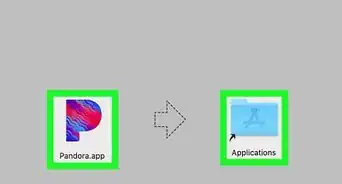
3Follow the installation wizard. For a Windows installation, follow the Installation Wizard by clicking Next or Continue when prompted. For a Mac installation, you'll most likely be asked to drag and drop the application into the Applications folder in Finder.[4]
-
4Open Deezer and sign in. When you sign in, you'll find all the perks of your account including the premium or family plan if you signed up for it.[5]
- The free version of Deezer does not work on desktop players, but will only work on mobile platforms.
Advertisement




References
About This Article

1. Open the Google Play Store or App Store.
2. Search Deezer.
3. Tap the first search result that says Deezer Music Player.
4. Tap Install or Get.
5. Open Deezer and sign in.