This article was written by Travis Boylls. Travis Boylls is a Technology Writer and Editor for wikiHow. Travis has experience writing technology-related articles, providing software customer service, and in graphic design. He specializes in Windows, macOS, Android, iOS, and Linux platforms. He studied graphic design at Pikes Peak Community College.
The wikiHow Tech Team also followed the article's instructions and verified that they work.
This article has been viewed 11,749 times.
This wikiHow teaches you how to download Amazon Prime videos on your smartphone or tablet. Downloading videos on Amazon Prime is a good way to take the videos you want to watch on the go and watch them in places without an internet connection.
Steps
-
1Open the Amazon Prime app. Amazon Prime is the app that has a white icon that says "Amazon Prime" in blue and black letters with the Amazon arrow below. Tap the icon on your home screen to open the app. Amazon Prime is available from the Google Play Store on Android smartphones and from the App Store for iPhone and iPads.
- If you haven't already done so, log in to the Amazon Prime app with the email address and password associated with your Amazon account.
-
2Select a movie or series. Videos and series are displayed all throughout the Amazon Prime home screen. You can also browse videos by tapping "Originals", "TV", "Movies", or "Kids" at the top. Tap the magnifying glass icon to browse videos by name.
-
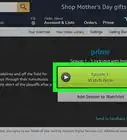
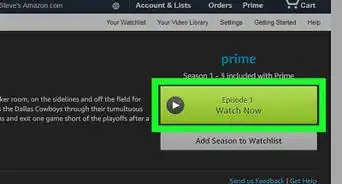
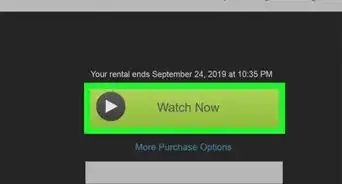
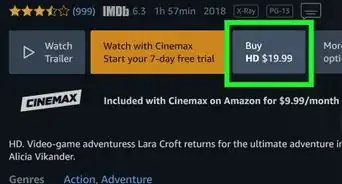
3Tap Download. The Download button is below the green button that says "Watch Now" on the information page of a video. If you tapped a series, you can tap "Download Season #" to download an entire season. You can also download individual episodes by tapping the download icon across from an episode.
- The download feature is not available for Amazon Channels content such as HBO, Showtime, etc.
-
4Select a video quality. Your video download will start after you select a video quality option. The video quality options are as follows:
- Best has the best video quality but takes up the most amount of storage space on your smartphone or tablet.
- Better provides good video quality while taking up a modest amount of storage space on your smartphone or tablet.
- Good provides average video quality while taking up a smaller amount of storage space on your phone.
- Data Saver downloads the lowest quality version but takes up the least amount of data space on your smartphone or tablet.



About This Article

1. Open the Amazon Prime app.
2. Tap a movie or series.
3. Tap Download or the download icon.