This article was co-authored by wikiHow Staff. Our trained team of editors and researchers validate articles for accuracy and comprehensiveness. wikiHow's Content Management Team carefully monitors the work from our editorial staff to ensure that each article is backed by trusted research and meets our high quality standards.
This article has been viewed 70,406 times.
Learn more...
You can communicate in real time with multiple people across multiple platforms by using GroupMe. The conversation is kept in your GroupMe account, so you have one continuous log that all group members can interact through via desktop or mobile device. You can even add an email address or phone number as a contact to get in touch with an individual who might not have a GroupMe account and it’s free!
Steps
Method 1
Method 1 of 2:Creating An Account
-
1Go to https://web.groupme.com.
-
2Click Sign up today.
-
3Type in your email address.
- You can also sign up with your Facebook account by clicking on Continue with Facebook.
-
4Click on Continue.
-
5Enter your personal information. This is done by typing in the requested information for each text field on the “Welcome. Let’s Get You Started” page.
- Entering your phone number allows you to receive messages via your mobile device.
-
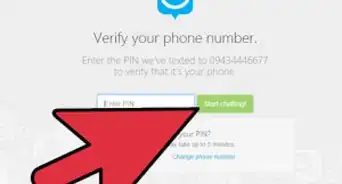
6Type in the code and Click Continue. It will be texted to your mobile device that's linked with the number you provided GroupMe.
-
7Click on Start Chatting!. Doing so will successfully create a GroupMe account. You can now create your first group or start chatting in one that you’ve been invited to!


Method 2
Method 2 of 2:Creating A Group
-
1Go to https://web.groupme.com and sign in.
- If you’re already signed into GroupMe, go to Step 2.
-
2Click on the blue chat bubble. It’s located towards the top-left of your screen and has a plus symbol on it.
-
3Click Start Group.
-
4Type in the group name.
-
5Click on Create Group.
-
6Click on a contact to add. You can scroll through the list or type their name into the text field at the top of the “Add Members” pop up.
- Type in the individual’s phone number or email address if they don’t have a GroupMe account.
-
7Click on the Add Members button. It’s below the contacts and lists the number of people you will be adding to the group.
-
8Click on the text field. It’s at the bottom of your screen.
-
9Type out a message.
-
10Click on +. This will send your message and create a group forum where all members can communicate in real time.


Community Q&A
-
QuestionDoes everyone I invite to the group message need the app to see the invite?
 Community AnswerNo they can see the invite in singular text that shows everyone. It works just as well as it would with the app and they can rejoin without the app
 -
QuestionIf I remove myself from Groupme, does anyone know about it?
 Community AnswerYes. Groupme will automatically send a message to the members of your group saying that you have left the group.
 -
QuestionIf I add a new member to the group, can they see past messages?
 Community AnswerNo, they cannot.
 -
QuestionCan I control who can add people to the group?
 Community AnswerYes. You can make certain people administrators, and they can add and remove people.
 -
QuestionHow do I delete users in the group?Community AnswerIn a group that is not closed, any member can delete other members from the group. Simply click on the icon in the top-right corner and click on the members option. From here, you can view all group members. Click on the user you would like to remove. Then click, "remove from group."
-
QuestionI am in a group and want to send a message to only one member of the group. How do I do that?Community AnswerCopy that person's number out of the group and save to your contacts list. Then send this person your message as an individual.
-
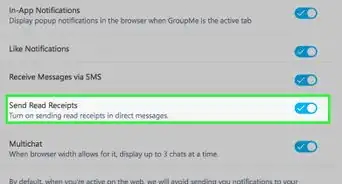
QuestionMy have my Groupme messages suddenly started to come in on regular text?Community AnswerCheck your settings - there is an option to receive all messages via SMS, as well as in an app that you can turn on and off.
Warnings
- GroupMe is currently only available to U.S. users.
Thanks!







References
About This Article