X
wikiHow is a “wiki,” similar to Wikipedia, which means that many of our articles are co-written by multiple authors. To create this article, volunteer authors worked to edit and improve it over time.
This article has been viewed 13,879 times.
Learn more...
Chroma key is a visual editing technique that lets us overlap images and videos on top of each other. This article will run you through how you can create your own chroma key effects on Adobe Premiere Pro.
Steps
-
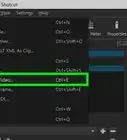
1Open Adobe Premiere Pro. Select New Project if you want to start from scratch, or open an existing project if you plan on adding chroma key to a composition you've already made.
-
2Set up the background image/video. Just drag and drop it into the timeline. This can also just be Premiere's default background colour.
-
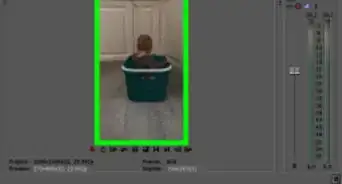
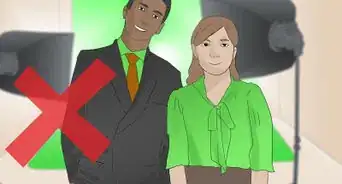
3Prepare the clip/s that you want to key. For optimal effectiveness, they will always have a flat coloured background (commonly green, hence why the effect is also known as 'green screening'). Drop these clips onto the timeline above the background.
-
4Resize and adjust the clip until you are satisfied with its size and position. If it will be a full-screen effect (like this clip of falling leaves), resize until it completely covers the screen.
-
5Search up the effect. Make sure you are in the Effects tab (indicated at the top), where there should be an 'effects' search bar on the right. Inside, type key. There will be many different effects, but Ultra Key is the most effective one.
-
6Click and drag Ultra Key onto the clip you will be processing. On the left, the ultra key settings will appear in the effect menu.
-
7Go to Key Color in the settings and click dropper. It will now transform your cursor into a colour selector. Click on a green (or plain colour bg) part of the clip. You will notice that most of the green will disappear.
-
8Play the clip. Check to see if you are satisfied with the key. If it looks messy or it doesn't look natural, you can tweak it with the settings. Some tweaks you can do include altering how aggressive colour removal is and the saturation/hue of the clip. Play around until you are happy with it.
-
9Trim all clips to the desired length. Once you are done, you can export the project or continue editing.


Community Q&A
-
QuestionCan you key out more than one color?
 SilvertheprophecyCommunity AnswerThe base feature of Ultra key only lets you key out one colour. However, depending on what you want to do, a combination of blend modes and other effects may help achieve the same effect.

-Step-15.webp)