X
This article was written by Nicole Levine, MFA. Nicole Levine is a Technology Writer and Editor for wikiHow. She has more than 20 years of experience creating technical documentation and leading support teams at major web hosting and software companies. Nicole also holds an MFA in Creative Writing from Portland State University and teaches composition, fiction-writing, and zine-making at various institutions.
This article has been viewed 2,996 times.
This wikiHow teaches you how to send a private message to another Slack user when you’re using a computer.
Steps
-
1Open Slack. If you’re using a Mac, it’s in the Applications folder. If you have Windows, it’s in the Windows (Start) menu.
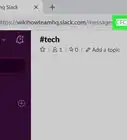
- You can also sign in to Slack by navigating to your team’s URL in a web browser.
-
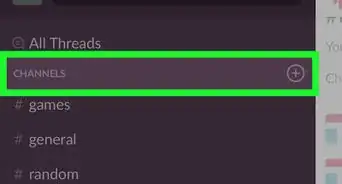
2Click + next to “Direct Messages.” It’s in the purple bar along the left side of the screen.[1]Advertisement
-
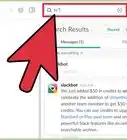
3Add the user you want to message. To do this, click the user’s name in the list. If you’re having trouble finding the person you want to message, start typing their name into the box, then click the correct name when it appears.
-
4Click Go. This opens a new message to the selected user(s).
-
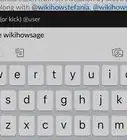
5Type your message. To start typing, click the message box at the bottom of the window.
-
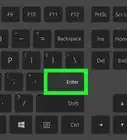
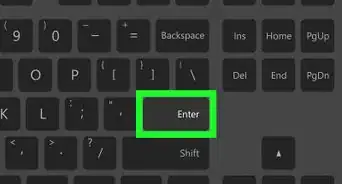
6Press ↵ Enter or ⏎ Return. Your message will appear in the conversation immediately.Advertisement



About This Article

Nicole Levine, MFA
Tech Specialist
This article was written by Nicole Levine, MFA. Nicole Levine is a Technology Writer and Editor for wikiHow. She has more than 20 years of experience creating technical documentation and leading support teams at major web hosting and software companies. Nicole also holds an MFA in Creative Writing from Portland State University and teaches composition, fiction-writing, and zine-making at various institutions. This article has been viewed 2,996 times.
How helpful is this?
Co-authors: 3
Updated: May 25, 2021
Views: 2,996
Categories: Slack
Article SummaryX
1. Open Slack.
2. Click + next to “Direct Messages.”
3. Add the user(s).
4. Click Go.
5. Type a message.
6. Press ↵ Enter or ⏎ Return.
Did this summary help you?
Advertisement