This article was written by Darlene Antonelli, MA. Darlene Antonelli is a Technology Writer and Editor for wikiHow. Darlene has experience teaching college courses, writing technology-related articles, and working hands-on in the technology field. She earned an MA in Writing from Rowan University in 2012 and wrote her thesis on online communities and the personalities curated in such communities.
The wikiHow Tech Team also followed the article's instructions and verified that they work.
This article has been viewed 66,055 times.
This wikiHow teaches you how to remove an individual message from a WhatsApp chat or delete an entire chat.
Steps
Method 1
Method 1 of 5:Deleting an Individual Message
-
1Open WhatsApp. It's a green app with a white phone and speech bubble icon.
- Use this method to delete a message you've sent in a group or one-on-one chat within the last hour.
-
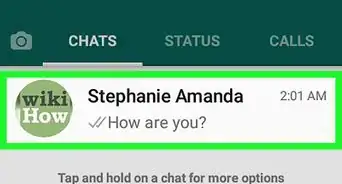
2Tap Chats. It's either at the bottom of the screen (iPhone) or the top of the screen (Android).
- If WhatsApp opens to a conversation, you'll first tap the "Back" button in the top-left corner of the screen.
-
3Tap a conversation. Doing so will open it.
-
4Tap and hold the message you wish to delete. This will prompt a pop-up bar of options either directly above the message (iPhone) or at the top of the screen (Android).
-
5
-
6Tap Delete for Everyone. After you get a confirmation that "This message was deleted," the message (or messages) will be deleted from the conversation.
- In order for the message to be deleted, you and everyone else in the group must be using the latest version of Whatsapp.
- Though you're deleting the message, the other people you're conversing with might have seen the message before it was deleted.
- You can tap Delete for Me if you don't want to delete the message for everyone in the conversation.


Method 2
Method 2 of 5:Deleting Messages in a Chat
-
1Open WhatsApp. It's a green app with a white phone and speech bubble icon.
-
2Tap Chats. It's either at the bottom of the screen (iPhone) or the top of the screen (Android).
- If WhatsApp opens to a conversation, first tap the "Back" button in the top-left corner of the screen.
-
3Tap a conversation (Android) or swipe left on the chat name (iPhone). Doing so will select it and open it or prompt a menu (iPhone).
-
4Tap More (iPhone) or ⋮ (Android). This three-dot menu icon or "More" menu is in the top-right corner of the screen. If you swiped on an iPhone, you'll see this in the menu that appears.
-
5Tap Clear chat. If you're using an Android, select if you want to delete starred messages and media in the chat before continuing.
-
6Tap Delete all except starred (iPhone), Delete all messages (iPhone), or Clear (Android). This will clear all the messages in that conversation, which you will need to repeat for any chats you want to clear.
- If you saved a comment by tapping it to put a star icon next to it, this will not be deleted with the rest of the conversation. You can still find all your starred messages by tapping the three-dot menu icon as soon as you launch WhatsApp, then selecting Starred messages.


Method 3
Method 3 of 5:Deleting All Chats
-
1Open WhatsApp. It's a green app with a white phone and speech bubble icon.
-
2Tap Chats. It's either at the bottom of the screen (iPhone) or the top of the screen (Android).
-
3Tap Settings. It's in the bottom-right corner of the screen for iPhones.
- If you're using an Android, you'll need to tap the three-dot menu icon in the top right corner first.
-
4Tap Chats. It's in the middle of the screen.
-
5Tap Delete All Chats. It's near the bottom of the screen.
- If you want to keep the conversations but remove all messages inside of them, tap Clear All Chats instead.[3]
- If you chose Clear All Chats, you'll still have conversations listed on the "Chats" page, but there will be no messages in them.


Method 4
Method 4 of 5:Deleting a Group Chat as a Member
-
1Open WhatsApp. It's a green app with a white phone and speech bubble icon.
-
2Tap Chats. It's either at the bottom of the screen (iPhone) or the top of the screen (Android).
- If WhatsApp opens to a conversation, first tap the "Back" button in the top-left corner of the screen.
-
3Tap and hold a group conversation that you want to leave and delete. You may have to scroll down to find your group depending on the last time you used the conversation.
- If you're using an iPhone, swipe left on the group chat you want to delete.[4]
-
4Tap More (iPhone) or ⋮ (Android). This three-dot menu icon or "More" menu is in the top-right corner of the pop-up.
-
5Tap Exit Group. This button is at the bottom of the page. Doing so will remove you from the group and the group from the "Chats" page.
- The other people in the group will see that you have left the group. The original creator of the group chat will become an admin that can manually kick each member of the group and delete the conversation.
-
6Tap or swipe the chat again and tap Delete. Once you leave the group, you'll be able to delete the group chat.[5]
- Although you're deleting the conversation from your phone, the others in the group will stay in that group and the conversation won't be deleted for them. They will need to perform the same steps to leave and delete the group from their phone if they want it gone.


Method 5
Method 5 of 5:Deleting a Group Chat as an Admin
-
1Open WhatsApp. It's a green app icon with a white phone and speech bubble inside it.
- If you originally created a group conversation, you are automatically an admin and will be able to do this; if you're not an admin, you have to leave the group before you can delete it from your phone.
-
2Tap Chats. It's either at the bottom of the screen (iPhone) or the top of the screen (Android).
- If WhatsApp opens to a conversation, first tap the "Back" button in the top-left corner of the screen.
-
3Tap a group conversation that you want to delete. This will open the conversation and display the messages that have been sent.
-
4Tap the name of the group. It's at the top of your screen and also lists the members of the group.
- A "Group Info" page will display.
-
5Tap the name of the person you want to remove. You'll have to scroll down to find the "Participants" list.
- You have to remove everyone from the group to delete it.
-
6Tap Remove from Group. When you're asked to confirm your action, tap Remove to continue.
- Repeat this for every member in the group except for yourself.
-
7Tap Exit Group. You'll find this at the bottom of the "Group Info" page and may be prompted to confirm your action.
-
8Tap Delete Group. A message at the top of the screen lets you know that you're no longer part of the group, even though you're still seeing the "Group Info" page.
- Tap Delete Group again and your group will be deleted for everyone who used to be in the group.[6]


References
- ↑ https://faq.whatsapp.com/android/chats/how-to-delete-messages/?lang=en
- ↑ https://faq.whatsapp.com/iphone/chats/how-to-delete-messages
- ↑ https://faq.whatsapp.com/android/chats/how-to-delete-chats
- ↑ https://faq.whatsapp.com/iphone/chats/how-to-delete-chats
- ↑ https://faq.whatsapp.com/android/chats/how-to-delete-chats
- ↑ https://www.lifewire.com/how-to-delete-a-whatsapp-group-4692530
About This Article

1. Open WhatsApp.
2. Tap the Chats tab.
3. Tap and hold the chat you want to delete.
4. Tap Delete.