This article was co-authored by Josef Storzi. Josef Storzi is an Apple and Mobile Phone Repair Specialist and the Owner of Imobile LA, a mobile phone repair company based in Los Angeles, California. Josef specializes in repairing screens, charging ports, batteries, water damage, speakers, and microphones on all mobile phone brands including Apple, Samsung, LG, Nokia, and Sony. He also specializes in tablet, laptop, and computer repairs as well as the pros and cons of recent mobile software updates.
The wikiHow Tech Team also followed the article's instructions and verified that they work.
This article has been viewed 1,019,623 times.
This wikiHow teaches you how to delete apps from an iPad.
Steps
Method 1
Method 1 of 2:Using iPad
-
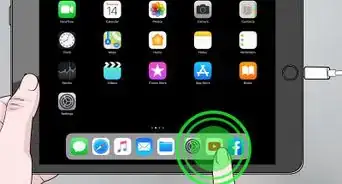
1Tap and hold an app until all the apps on the screen begin to jiggle.[1]
-
2Tap ⓧ in the upper-left corner of the app you want to delete.[2]
- Some default Apple apps, like App Store, Settings, Contacts, and Safari, can't be removed and will not display an ⓧ.
-
3
-
4Tap the Home button to return the Home screen to normal. The app has been deleted from your iPad.


Method 2
Method 2 of 2:Using iTunes
-
1Connect your iPad to a computer. Use the cable that came with your device, connecting the USB end to the computer and the other end to your iPad's charging port.
-
2Open iTunes on the computer. It's a round app icon with a colorful musical note.
-
3Click on your iPad's icon. It's in the upper-left part of the iTunes window.
-
4Click on Apps. It's in the left pane of the iTunes window under "Settings."
-
5Find an app that you want to delete. The apps are listed in the center pane of the window, under "Apps."
- You may need to scroll down to find the app you're looking for.
-
6Click on Remove. It appears to the right of each app that's installed on your iPad.
- The button label will change to Will Remove.
- Repeat this step for all apps you want to delete from your iPad.
-
7Click on Apply. It's in the lower-right corner of the iTunes window. Once the sync is complete, the app(s) will be deleted from your iPad.


Community Q&A
-
QuestionWill deleting apps help my iPad run faster?
 Community AnswerYes. Deleting apps will free up storage and help your iPad run faster. Be careful not to delete too many apps, however, as some work together. If you delete one, it might affect another one, and prevent it from working properly.
 -
QuestionWhen I hold the apps, they can be moved, but there is no way to delete them. What can I do?
 Community AnswerThe setting for not deleting apps may be on. Just go into restrictions in the general tab of settings and select the option that allows you to delete apps.
 -
QuestionHow do I change my search engine?
 Community AnswerTap "Settings," then "Safari," then tap "Search Engine." There are four options to choose from.
 -
QuestionWhy can't I delete certain apps on the first page of my iPad?
 Community AnswerThese are the factory installed apps. In iOS 10, it is now possible to delete some of them. Follow the instructions in this article. You still cannot delete apps like "Settings," "App Store," "Camera," etc. as those are integral to the iPad's function. If you need help updating your iPad, read this article: Update iOS Software on an iPad.
 -
QuestionHow do I delete all the games on my iPad?Community AnswerHold the app for a while; when all of the apps begin to shake, you will see the little X's in the corner. Just press the X to delete and a warning will come up asking if you want to delete it. Press yes if you do; if not hit cancel. It isn't possible to delete the whole lot at once unless you wipe everything with a factory reset; it wouldn't make sense to delete every app at once because you might wish to keep some data intact.
-
QuestionHow can I tell if an app has really been deleted?Community AnswerGo to the App Store and then go to Purchased Apps. Over there, it should give you a list of all your apps. There is also a section that provides all the apps that have been deleted. That way, you can tell which apps are on your device and which are not.
-
QuestionI unintentionally deleted an app on my iPad. How can I get it back?Community AnswerGo in the App Store, click on Purchased, and then you can look through the purchased apps to find the app you deleted and redownload it.
-
QuestionHow can I delete apps on the iPad that have no "x"?Community AnswerIf your apps wiggle, but have no "x", it means that they are required by the ios software and cannot be deleted.
-
QuestionHow do I delete Apple-installed apps, such as Newsstand or Find Friend?Community AnswerHold the app down on your home screen until it starts to move, then click on the "X" at the top right corner.
-
QuestionI tried to delete apps by holding the icon and pressing X, But no X appeared on any icons. I went to 'settings>restrictions' but deleting apps was not restricted. How can I delete them?Community AnsweriI these are the initially pre-downloaded apps, many of them cannot be deleted.




References
About This Article

1. Tap and hold an app.
2. Tap ⓧ.
3. Tap Delete
4. Press the Home button.