X
wikiHow is a “wiki,” similar to Wikipedia, which means that many of our articles are co-written by multiple authors. To create this article, volunteer authors worked to edit and improve it over time.
The wikiHow Tech Team also followed the article's instructions and verified that they work.
This article has been viewed 1,794 times.
Learn more...
You might work hard to decorate your house for Christmas, but what about your computer? Microsoft offers a variety of themes available for download from the Microsoft Store, including Christmas themes. This wikiHow will teach you how to download and apply Christmas themes to your computer to make it feel a little more festive.
Steps
-
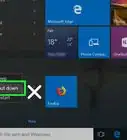
1Open Settings. Click (or tap) the Start button [[Image:|techicon|x30px]], and then click on the settings gear [[Image:|techicon|x30px]].
-
2Select "Personalization".
-
3Click the "Themes" option in the left pane.
-
4Select "Get more themes in the Microsoft Store". This will open the Microsoft Store to the themes page.
-
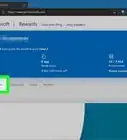
5Choose which theme you want. There are a few Holiday Themes available from the Microsoft Store. A good one for Christmas is, "Winter Holiday Glow". You can find this one near the top, although you may have to scroll down a little bit.
- Frosty Art is also a good theme if you are looking for a theme that does not just apply to Christmas.
-
6Click "Get". This will install the theme.
- Note, if you clicked on any of the links in the previous step, you will need to click "Get" twice.
-
7Click "Apply" once the theme has downloaded. This will apply the theme. You can now close the store and admire your newly decorated computer.
-
8Click on the theme in Settings. Once your theme has downloaded, the settings app will open. Click on the theme that you just downloaded to apply it.


Community Q&A
-
QuestionHow do we do the same on Google Chrome?
 R2_d2000Top AnswererYou can download a theme from the Chrome Webstore to change it to a Christmas theme.
Warnings
- Avoid downloading themes or other holiday programs from anywhere other than the Microsoft Store or Microsoft's website. These are well known for containing viruses, so it's best to stick with Microsoft's selection when downloading them.Thanks!