This article was written by Travis Boylls. Travis Boylls is a Technology Writer and Editor for wikiHow. Travis has experience writing technology-related articles, providing software customer service, and in graphic design. He specializes in Windows, macOS, Android, iOS, and Linux platforms. He studied graphic design at Pikes Peak Community College.
The wikiHow Tech Team also followed the article's instructions and verified that they work.
This article has been viewed 44,302 times.
This wikiHow teaches you how to customize your YouTube account. You can customize your profile by adding a description of your channel, uploading channel artwork, and select featured content and a channel trailer.
Steps
Method 1
Method 1 of 4:Editing Channel Info
-
1Go to https://www.youtube.com in a web browser. You can use any web browser on PC or Mac. This is the web address for YouTube.
- If you are not automatically logged in to YouTube, select your Google account, or click Use another account and log in with the email address and password associated with your YouTube account.
-
2Click your profile image. It's in the upper-right corner of the YouTube page. This displays a drop-down menu for your account.
- If you have not uploaded a profile image, you will see a colored circle with your initial in the middle.
-
3Click Your Channel. It's the first option in the drop-down menu below your profile image. It's next to an icon that resembles a person.
-
4Click Customize Channel. It's the first blue button at the top of your YouTube Channel page in the center-right.
- If you are using YouTube Studio (Beta), click your profile image in the upper-left corner and click the square icon in the middle of your profile image. This takes you to the page for your YouTube channel.
-
5
-
6
-
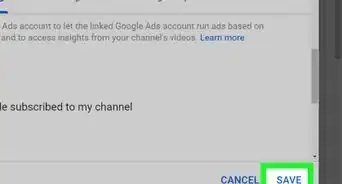
7Click Save. This saves your Channel Settings and returns to your channel page.
-
8Click the pencil icon. It's in the upper-right corner of the image banner at the top of your YouTube channel page. It appears when you place the mouse cursor over the banner image. Clicking this icon displays a small drop-down menu.
-
9Click Edit Links. It's the first option in the drop-down menu in the upper-right corner. This displays a page where you can add some information about your channel.
-
10Click Channel Description. It's the button below the "Description" header at the top of the page.
-
11Type a brief description for your YouTube channel and click Done. Use the box below "Channel Description" to type a brief description of your YouTube channel. Click the blue button that says Done when you are finished.
-
12Click Email and add an email address (optional). If you want to add an email address to your YouTube Channel that viewers can contact you at, click the button that says Email and then type an email address in the bar. Click Done when you are finished.
-
13Select a location (optional). If you want to select a location for your YouTube Channel, click the drop-down menu next to location and select the country you live in.
-
14Add a custom link. To add a custom link, scroll down and type the text for the link in the bar that says "Link Title" then add the web address for the link in the bar that says "URL".
- To add additional links, click the button that says Add below the bars you use to add a link.
-
15Click Done. It's the blue button in the bottom-right corner of the YouTube description page.


Method 2
Method 2 of 4:Selecting Featured Content and a Channel Trailer
-
1Go to https://www.youtube.com in a web browser. You can use any web browser on PC or Mac. This is the web address for YouTube.
- If you are not automatically logged in to YouTube, select your Google account, or click Use another account and log in with the email address and password associated with your YouTube account.
-
2Click your profile image. It's in the upper-right corner of the YouTube page. This displays a drop-down menu for your account.
- If you have not uploaded a profile image, you will see a colored circle with your initial in the middle.
-
3Click Your Channel. It's the first option in the drop-down menu below your profile image. It's next to an icon that resembles a person.
-
4Click Customize Channel. It's the first blue button at the top of your YouTube Channel page in the center-right.
- If you are using YouTube Studio (Beta), click your profile image in the upper-left corner and click the square icon in the middle of your profile image. This takes you to the page for your YouTube channel.
-
5
-
6
-
7Click Save. This saves your Channel Settings and returns to your channel page.
-
8Click Featured Content. It's the blue button above your list of video uploads. This opens a window you can use to select a featured video.
-
9Select a video and click Save. Click the video you want to use as featured content and click Save.
-
10Type a heading and click Save. Type a heading for your featured video and click Save.
-
11Click the For new visitors tab. It's the second tab above the "Featured Content" area.
-
12Click Channel trailer. It's the button in the middle of the YouTube player image. This opens a window you can use to select a trailer for your channel.
-
13Select a video and click Save. This selects a video to greet new viewers with. Select a trailer for your channel.


Method 3
Method 3 of 4:Uploading Channel Art
-
1Go to https://www.youtube.com in a web browser. You can use any web browser on PC or Mac. This is the web address for YouTube.
- If you are not automatically logged in to YouTube, select your Google account, or click Use another account and log in with the email address and password associated with your YouTube account.
-
2Click your profile image. It's in the upper-right corner of the YouTube page. This displays a drop-down menu for your account.
- If you have not uploaded a profile image, you will see a colored circle with your initial in the middle.
-
3Click Your Channel. It's the first option in the drop-down menu below your profile image. It's next to an icon that resembles a person.
-
4Click Customize Channel. It's the first blue button at the top of your YouTube Channel page in the center-right.
- If you are using YouTube Studio (Beta), click your profile image in the upper-left corner and click the square icon in the middle of your profile image. This takes you to the page for your YouTube channel.
-
5Click the pencil icon. It's in the upper-right corner of the image banner at the top of your YouTube channel page. It appears when you place the mouse cursor over the banner image. Clicking this icon displays a small drop-down menu.
-
6Click Edit Channel Art. It's the second option in the drop-down menu.
-
7Click Select a photo from your computer. This opens a file browser you can use to select an image to upload from your computer.
-
8Select an image file and click Open. Use the file browser to navigate to the image file you want to use. Click the image file to select it and click Open in the lower-right corner of the file browser. This uploads the photo to your channel.
- A banner photo's dimensions must be a minimum of 2048 x 1152, and recommended dimensions of 2560 x 1440.
- A banner photo will be cropped different when viewed on a TV, desktop computer, or mobile device. Check your channel on different devices to see how the channel art looks.
- If you are creating your own art for your YouTube channel, it's recommended you use a template so that you keep all your text and prominent parts of your artwork in the safe areas. This will ensure that your channel art looks good on all devices.
-
9Click Select. It's the blue button in the lower-left corner. This applies the image you selected as your channel art.


Method 4
Method 4 of 4:Changing Your Profile Image
-
1Go to https://www.youtube.com in a web browser. You can use any web browser on PC or Mac. This is the web address for YouTube.
- If you are not automatically logged in to YouTube, select your Google account, or click Use another account and log in with the email address and password associated with your YouTube account.
-
2Click your profile image. It's in the upper-right corner of the YouTube page. This displays a drop-down menu for your account.
- If you have not uploaded a profile image, you will see a colored circle with your initial in the middle.
-
3Click Your Channel. It's the first option in the drop-down menu below your profile image. It's next to an icon that resembles a person.
-
4Click Customize Channel. It's the first blue button at the top of your YouTube Channel page in the center-right.
- If you are using YouTube Studio (Beta), click your profile image in the upper-left corner and click the square icon in the middle of your profile image. This takes you to the page for your YouTube channel.
-
5Click the pencil icon in your profile image. Your profile image is the square image in the upper-left corner. The pencil icon appears when you place the mouse cursor over the image.
- If have not uploaded a profile image, your profile image will be a colored circle with your initial in the middle.
-
6Click Edit. It's in the pop-up window. This takes you to your Google Account page where you can select a new profile image.
-
7Click the camera icon in the middle of your profile image. Your profile image is the circular image in the middle of the page. The camera icon that appears when you place the mouse cursor over your profile image.
-
8Click Upload Photo. It's the first square in the upper-left corner of the window. This opens a file browser you can use to select a new photo.
-
9Select an image file and click Open. Use the file browser to navigate to the image file you want to use. Click the image file to select it and click Open in the lower-right corner of the file browser. This uploads the photo to your channel.
-
10Click and drag the clear square in the middle of your image. The clear square is the part of the image that will be used for your profile image. Click and drag it over the area of your photo you want to use as your profile image.
-
11Click Done. It's in the upper-right corner of the window.



About This Article

1. Go to https://www.youtube.com and log in to your account.
2. Click your profile image in the upper-right corner and click Your Channel.
3. Click Customize Channel.
4. Click the pencil icon in the upper-right corner of your banner image at the top.
5. Click Edit Links.
6. Use the description page to add a channel description, email address, and links. Then click Done.
7. Click the Home tab.
8. Click the pencil icon in the upper-right corner of your banner image at the top.
9. Click Edit channel art.
10. Drag an image file into the square space in the middle of the window and click Done.
11. Click the pencil icon in the middle of your profile image.
12. Click the camera icon in the middle of your profile image.
13. Click Upload photo.
14. Click an image file and click Open.
15. Adjust the image cropping and click Done.