X
wikiHow is a “wiki,” similar to Wikipedia, which means that many of our articles are co-written by multiple authors. To create this article, 11 people, some anonymous, worked to edit and improve it over time.
This article has been viewed 11,448 times.
Learn more...
Through this guide you will learn how to create a bootable OS X install disk using the DiskMaker X Application. You will also download the OS X El Capitan Installer from the Mac App Store. The installer you create can be used to install OS X El Capitan 10.11 on any eligible Mac computer.[1] This is a more convent and less time consuming way to install OS X El Capitan on multiple machines, gives you a handy emergency disk, and enables a fresh OS X install.
Steps
Part 1
Part 1 of 3:Preparing the Software
Part 1
-
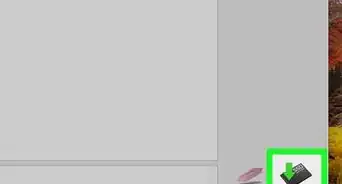
1Download a program, such as DiskMaker X, which allows you to make a bootable OS X disk. Install it on your computer.
-
2Open the Mac App Store:
- You can do this by going to Launchpad.
- Or by pressing the ⌘ Cmd key and the space bar key on the keyboard and typing “App Store”.
Advertisement -
3Search in the top right corner for “El Capitan.”
- Click the app called OS X El Capitan.
- Click the “Download” button.
- If you get a pop up saying “Would you like to continue," you will need to click continue to proceed with this guide.
- You will need to type in your iTunes Credentials to download the installer.
-
4Wait for the downloader to install. This will take some time depending on the speed of your internet connection (roughly 30 minutes).
-
5Wait for the installer to launch, once it's downloaded.
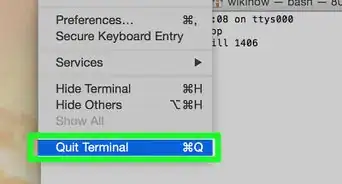
- You can close this out by pressing ⌘ Cmd+Q keys on the keyboard, as you will not need this window for the remainder of this guide.
- Or you can click OS X El Capitan in the Menu Bar and select "Quit" to close the application.
Advertisement


Part 2
Part 2 of 3:Creating the Disk on the Flash Drive
Part 2
-
1Plug your 8 GB flash drive into one of the USB ports on your Mac.
-
2Open DiskMaker X or your chosen equivalent program.
- This can be done by going to Launchpad and clicking the app icon.
- Or by pressing ⌘ Cmd and the space bar key on the keyboard and typing DiskMaker X.
-
3Select the “El Capitan (10.11)” option when asked what type of installer you plan to make.
- It will say it found the OS X installer in the “/Applications” folder. Click the “Use this copy" option.
- Select “An 8 GB USB thumb drive” when asked what kind of disk you will want to use.
-
4Select the name of the drive you wish to use (in this guide it is named “El Capitan Installer”).
-
5Wait for the warning that the content on the disk will be erased.
- You must select “Erase then create disk” to continue the creation of the install drive.
-
6Click "Continue".
- Enter administrator password and click "Ok."
-
7Wait for the creation. The drive is now being created and will take some time depending on the speed of your computer (about 20 minutes).
- Do not remove the flash drive during this process.
- Do not let the computer shutdown during this process.
Advertisement


Part 3
Part 3 of 3:Finishing Up and Using Your Disk
Part 3
-
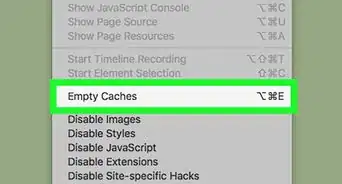
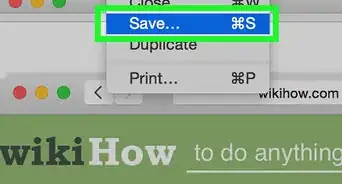
1Once the installation is complete, quit the installer.
-
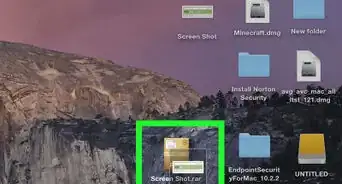
2Make sure to eject the disk before you remove it from the computer.
- To do this right click on the drive and select “Eject," or click and hold on the drive and drag to the trash icon to eject, or select the disk on the desktop or in the Finder window and press the ⌘ Cmd+E keys on the keyboard.
-
3Plug your drive into any eligible Mac to install El Capitan.
- To do this, shut down the mac you want to install El Capitan onto.
- Plug the Flash Drive into the computer.
- Reboot by pressing the power button and holding down the ⌥ Option key while it starts up.
- Follow the onscreen instructions to install OS X El Capitan.
Advertisement


Things You'll Need
- Mac running OS X 10.6.6 or later
- 8 gigabyte or more flash drive
- Mac you want to install El Capitan
-Step-6.webp)

About This Article
Advertisement