This article was written by Darlene Antonelli, MA. Darlene Antonelli is a Technology Writer and Editor for wikiHow. Darlene has experience teaching college courses, writing technology-related articles, and working hands-on in the technology field. She earned an MA in Writing from Rowan University in 2012 and wrote her thesis on online communities and the personalities curated in such communities.
This article has been viewed 3,574 times.
This wikiHow will teach you how to convert a PowerPoint into Google Slides using a web browser with either Google Drive or Google Slides as well as how to use the Google Drive mobile app to convert PowerPoint to Google Slides. If you haven't already, you'll need to save a copy of your PowerPoint presentation to your local storage.
Steps
Method 1
Method 1 of 3:Using the Google Drive Mobile App
-
1Open Google Drive. This app icon looks like a blue, green, red, and yellow triangle that you'll find on one of your Home screens, in the app drawer, or by searching.
- You will need to have the Google Drive and Slides apps installed on your phone to use this method. If you don't have the Google Drive or Google Slides mobile apps, you can get them for free from the Google Play Store or the App Store.
-
2Tap the multicolored plus symbol. You'll see it in the lower right corner of your screen.Advertisement
-
3Tap Upload. It's usually located on the first row of icons with an arrow pointing up from an open-sided box.
-
4Tap the PowerPoint file you want to upload. The file will immediately begin uploading to your Google Drive, which may take a while depending on your internet connection and the size of the file.
- While your PowerPoint is now uploaded to Google Drive, you'll need to convert it.
-
5Tap ⋮. This three-dot menu icon is located to the right of your document name.
-
6Tap Open with. It's usually centered in the menu.
-
7Tap Google Slides. If you don't have Google Slides installed on your phone, you may be prompted to download and install it now. Otherwise, the PowerPoint will open in Google Slides.
-
8Tap ⋮. You'll see this in the top right corner of your screen.
-
9Tap the question mark next to "Office Compatibility Mode." It's in yellow font under the name of your PowerPoint.
-
10Tap Save as Google Slides. This button is at the bottom of your screen below an explanation of what Office Compatibility Mode is.
- Select a Google account if prompted. Your PowerPoint will be converted to a Google Slides document.
Advertisement


Method 2
Method 2 of 3:Using Google Drive in a Web Browser
-
1Go to https://drive.google.com/drive/my-drive in a web browser. You can use any web browser to access your Google Drive and convert a PowerPoint presentation into Google Slides.
- Log in if prompted.
-
2Click New. This multicolored plus symbol is toward the upper left corner of your screen.
-
3Click File upload. It's usually the second option in the drop-down menu and will open your file manager.
-
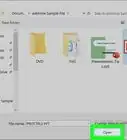
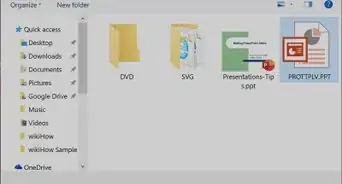
4Navigate to and double-click your PowerPoint file. This action will upload your PowerPoint into Google Drive, but it's still a .ppt format and will need to be converted.
-
5Right-click the uploaded file. You might need to navigate to the "Recents" tab on the left side of the screen to find your uploaded document listed.
-
6Select Open with and Google Slides. Google Slides is next to a yellow square icon with a white center that you'll see near the middle of the menu.
-
7Click File. You'll see this in the editing ribbon above the editing space on the left side of your screen.
-
8Click Save as Google Slides. It's near the middle of the menu and clicking it will create a copy of your PowerPoint that's converted to Google Slides.Advertisement


Method 3
Method 3 of 3:Using Google Slides in a Web Browser
-
1Go to https://docs.google.com/presentation/u/0/ in a web browser. You can use any web browser to convert PowerPoint to Google Slides.
- Log in if prompted.
-
2Mouse over the multicolored plus symbol and click the pencil icon. You'll see these icons in the lower right corner of your screen and doing this will create a new Google Slides from a blank document.
-
3Click File. It's in the editing ribbon above the editing space on the left side of your screen.
-
4Click Import Slides. This option is usually in the second grouping of menu options and will open a new dialog window.
-
5Click the Upload tab and select Select a file from your device. You can also drag and drop your PowerPoint file to the outlined box in the Upload tab.
-
6Navigate to and double-click your PowerPoint file. The file will upload automatically, then change to an "Import Slides" window where you'll preview the conversion and choose any slides that you like.
-
7Click to select the slides you want to convert from the PowerPoint to Google Slides. You can also click All or None on the right side of the page.
- Your selected slides will highlight in blue so you can keep track of what you've picked.
-
8Click Import slides. This yellow button is at the bottom of the window and will begin the conversion of your PowerPoint into Google Slides.[1]Advertisement






About This Article

1. Open Google Drive.
2. Tap the multicolored plus symbol.
3. Tap Upload.
4. Tap the PowerPoint file you want to upload.
5. Tap the three-dot menu icon.
6. Tap Open with and Google Slides.
7. Tap the three-dot menu icon.
8. Tap the question mark next to "Office Compatibility Mode."
9. Tap Save as Google Slides.