This article was co-authored by wikiHow Staff. Our trained team of editors and researchers validate articles for accuracy and comprehensiveness. wikiHow's Content Management Team carefully monitors the work from our editorial staff to ensure that each article is backed by trusted research and meets our high quality standards.
The wikiHow Tech Team also followed the article's instructions and verified that they work.
This article has been viewed 508,209 times.
Learn more...
This wikiHow teaches you how to convert text to outlines so you can manipulate its shape or edit individual characters.
Steps
-
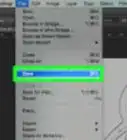
1Open or create a Photoshop file. To do so, double-click on the blue app icon that contains the letters "Ps," then click on File in the menu bar at the top of the screen, and:
- Click on Open... to open an existing document; or
- Click on New... to create a new document.
-
2Long click on the Type Tool. It's the T icon near the Pen Tool in the toolbar on the left side of the window. A drop-down menu will appear.
-
3Click on Horizontal Type Tool. It's at the top of the drop-down menu.
-
4Click anywhere on the document.
-
5Type the text you want to convert to outlines.
- Use the drop-down menus in the upper-left and center of the window to select a font, style, and size.
- You can't change the font or style after you convert the text to outlines.
-
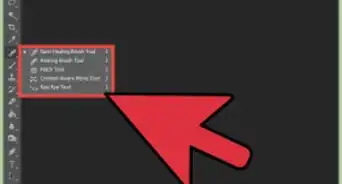
6Long click on the Selection Tool. It's the pointer icon just below the Text Tool.
-
7Click on Direct Selection Tool.
-
8Click on the text you typed.
-
9Click on Type in the menu bar.
-
10Click on Convert to Shape. The text is now a series of outlines that can be edited, moved, or individually altered.
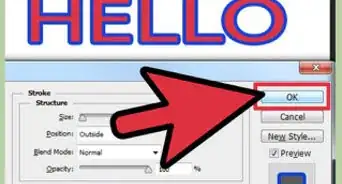
- You can change the color and look of your new shape by changing the Fill and Stroke colors in the top toolbar.


Community Q&A
-
QuestionHow do I make the outline thicker?
 Community AnswerIncrease the stroke weight. Since it's a shape now, you can click the rectangle tool and manipulate fill and stroke.

-Step-9.webp)
About This Article

1. Type some text.
2. Click and hold the Selection tool.
3. Select Direct Selection tool.
4. Select the text.
5. Click the Type menu.
6. Click Convert to Shape.