X
This article was written by Jack Lloyd. Jack Lloyd is a Technology Writer and Editor for wikiHow. He has over two years of experience writing and editing technology-related articles. He is technology enthusiast and an English teacher.
This article has been viewed 347,998 times.
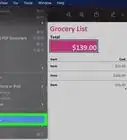
This wikiHow teaches you how to convert an Apple Numbers document into a Microsoft Excel (.XLS) file on a Mac, a Windows computer, and an iPhone, as well as within the iCloud website.
Steps
Method 1
Method 1 of 4:Using iCloud
Method 1
-
1Go to https://www.icloud.com/ in a web browser. You can access your iCloud account on any modern browser, including Opera and Internet Explorer.
-
2Enter your Apple ID email address and password. These are the credentials you'll use to sign into the App Store.
- If you don't have an Apple ID, first create one.
Advertisement -
3
-
4Open your Numbers document. If it's in iCloud, it will appear on the Numbers page.
- If you have to upload the document from your desktop: click the green gear icon, click Upload a Spreadsheet, and select your Numbers document.
-
5Click the wrench icon. It's in the top-right side of the document's page.
-
6Click Download a Copy. This is the top option in the drop-down menu.
-
7Click Excel. It's on the right side of the Download a Copy window. Doing so will prompt a .xls version of the Numbers file to download onto your computer.Advertisement


Method 2
Method 2 of 4:On Mac
Method 2
-
1Make sure your Numbers document is open. You should see the "Numbers" heading in the top-left corner of the Mac menu bar.
-
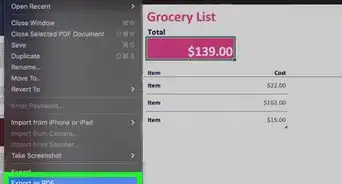
2Click File. It's in the top-left area of your Mac's screen. Doing so will invoke a drop-down menu.
-
3Select Export To. This option is near the middle of the File drop-down menu. Selecting it invokes a pop-out menu.
-
4Click Excel. It's in the Export To pop-out menu.
-
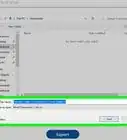
5Click Next. It's in the bottom-right corner of the "Export Your Spreadsheet" window.
-
6Enter a name for your file. This is how your file will appear in both Numbers and Excel.
-
7Select a save location. You'll do so by clicking a folder (e.g., "Desktop").
-
8Click Export. It's in the bottom-right corner of the window. This will save your Numbers document as an Excel document. You can double-click the document on any computer with Excel installed to open it in Excel.Advertisement


Method 3
Method 3 of 4:On Windows
Method 3
-
1Go to CloudConvert's website. It's at https://cloudconvert.com/numbers-to-xlsx. While there isn't a native way to change a Numbers document to an Excel document in Windows, you can use CloudConvert's services to make the conversion.
-
2Click Select Files. This button is near the top of the page. Doing so will open a file selection window.
-
3Select the Numbers file. The file selection window will likely open to your desktop folder, so if the Numbers file isn't there, you'll first have to select the Numbers file's location from the left-hand sidebar.
-
4Click Open. Doing so will upload the Numbers file to CloudConvert's website.
-
5Click select format. It's near the top of the page. Doing so will prompt a drop-down menu.
- The select format bar may already say ".xls" or ".xlsx", in which case you can skip the next two steps.
-
6Select Spreadsheet. It's at the bottom of the "file selection" drop-down menu.
-
7Click xls or xlsx. XLS pertains to older versions of Excel documents, while XLSX documents are formatted for newer versions of Excel.
-
8Click Start Conversion. It's the red button in the bottom-right corner of the page. This will convert your Numbers document into your selected Excel document format.
-
9Click Download. This green button is in the upper-right area of the site's page. Doing so will download your converted document in Excel format.
- You can double-click the newly converted Excel document to open it in Excel, provided your computer has Excel installed.
Advertisement


Method 4
Method 4 of 4:On iPhone
Method 4
-
1Open Numbers. This is the green app with white bars on it.
-
2Select a document to open. You may first have to tap the "Back" button in the top-left corner of the screen if Numbers opens to an existing document.
-
3Tap …. It's in the top-right corner of the screen.
-
4Tap Export. This option is near the top of the screen.
-
5Tap Excel. It's the lower-left option on this page.
-
6Tap Mail. You'll see the mail icon, which resembles a white envelope on a light-blue background, in the top row of the pop-up menu that's at the bottom of the screen.
-
7Enter your email address. This should go in the "To" field, which is at the top of the screen.
-
8Tap Send. It's in the top-right corner of the screen. Doing so will send the Numbers document in .XLS format to your email inbox, from which you can download it to a computer that uses Excel.Advertisement


Community Q&A
-
QuestionWill the appearance of the document formatting change with this method of converting the file from numbers to .Xls?
 Community AnswerYes.
Warnings
- Some Excel images and settings aren't supported in Numbers, and vice versa.Thanks!
Advertisement











About This Article
Article SummaryX
1. Open the Numbers section on the iCloud website.
2. Upload your Numbers document if necessary, then open it.
3. Click the wrench icon.
4. Click Download a Copy.
5. Click Excel.
Did this summary help you?
Advertisement