X
This article was written by Jack Lloyd. Jack Lloyd is a Technology Writer and Editor for wikiHow. He has over two years of experience writing and editing technology-related articles. He is technology enthusiast and an English teacher.
This article has been viewed 6,532 times.
While previous versions of iOS only allowed limited Siri input for third-party apps, iOS 10 introduces a plethora of third-party apps that welcome in-app control from Siri. Before using Siri with these apps, you'll need to ensure that Siri is both "on" and enabled for app interactions.
Steps
Part 1
Part 1 of 3:Enabling Siri App Interactions
Part 1
-
1Open the Settings app.
-
2Tap Siri.Advertisement
-
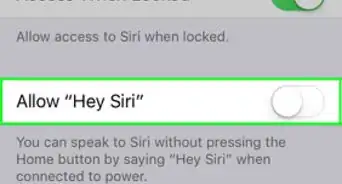
3Make sure Siri is on. The switch next to "Siri" at the top of the page should be green.
- If this switch is grey, tap it to enable Siri. Before you can continue, you may need to set up Siri.
-
4Tap App Support.
-
5Enable Siri support for your preferred apps. To do this, tap the grey switches to the right of each third-party app listed here. The switches should turn green.
-
6Press your Home button. Now you are ready to begin controlling third-party apps with Siri.Advertisement


Part 2
Part 2 of 3:Controlling Apps with Siri
Part 2
-
1Hold down your Home button. This should activate Siri.
- If you have "Hey Siri" enabled, simply say "Hey Siri."
-
2Say "Open (third-party app)". Siri should open the pertinent app.
-
3Experiment with different apps. Some commands you can give include:
- "Send (contact name) a message in WhatsApp." Siri will prompt you to dictate your text.
- "Post a status to Facebook." Siri will ask for a status.
- "Check my account balance in Venmo." Siri will open Venmo for you.
-
4Consider downloading more Siri-compatible apps. You can do this from within the App Store.Advertisement


Part 3
Part 3 of 3:Searching for Siri-Compatible Apps
Part 3
-
1Open the App Store app.
-
2Tap Featured. This is the star icon in the bottom left corner of the app.
-
3Tap "We love iOS 10 for apps". You may have to scroll down for awhile to reach this option.
-
4Find the "Hey Siri" section. This should be at the top of the page.
-
5Tap See All>. You can find this to the right of the "Hey Siri..." text.
-
6Review the supported apps list. You can use Siri to perform in-app functions such as messaging or sending money with all of the apps listed here.[1]
- To download any of these apps, tap GET on the right side of the app's name.
Advertisement


Warnings
- Although using Siri to message or send money might be tempting, these are still actions that are best reserved for manual input.Thanks!
Advertisement












References
About This Article
Advertisement