This article was written by Jack Lloyd. Jack Lloyd is a Technology Writer and Editor for wikiHow. He has over two years of experience writing and editing technology-related articles. He is technology enthusiast and an English teacher.
The wikiHow Tech Team also followed the article's instructions and verified that they work.
This article has been viewed 298,159 times.
This wikiHow teaches you how to bring up Siri on your iPhone, iPad, or Mac. In order to use Siri, she must be compatible with your mobile item or computer. You must set up Siri before using her.
Steps
Method 1
Method 1 of 3:On Mobile
-
1Make sure you set up Siri before proceeding. If you haven't yet enabled Siri on your iPhone or iPad, do so before you continue.
-
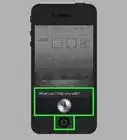
2Hold down the Home button. This is the circular button below the bottom of the screen.
- On an iPhone X, you'll hold down the Power button on the right side of the housing instead.
Advertisement -
3Release the Home button when Siri appears. Once the screen displays the multicolored Siri logo, you can release the Home button.
-
4Say aloud your request or question. You should see the words you're saying appear on-screen as you speak.
-
5Wait for a response. Siri will analyze your request or question and then follow up with an answer.
- You can tap the Siri logo at the bottom of the screen to open Siri again when she's done talking.
Advertisement


Method 2
Method 2 of 3:On Desktop
-
1Make sure you set up Siri before proceeding. If you haven't yet enabled Siri on your Mac, do so before you continue.
- Siri is available on any Mac running macOS Sierra and up.
-
2Find Siri in the menu bar. Look for the multicolored Siri circle in the upper-right side of the screen.
- If you don't see Siri there, skip this step and the next one.
-
3
-
4Use the keyboard shortcut instead. If you couldn't find the Siri logo, press and hold ⌘ Command+Space until Siri appears in the upper-right corner of the screen.
- You can view the current keyboard shortcut (if it's different than ⌘ Command+Space) by opening System Preferences, clicking Siri, and reviewing the "Keyboard Shortcut" field.
- On MacBooks with Touch Bars, you can access Siri by tapping the Siri icon in the Touch Bar.
-
5Wait for Siri to appear. The Siri menu should appear in the upper-right side of the screen.
-
6Say aloud your request or question. Siri will begin processing your request when you finish speaking.
-
7Activate Siri for further questions. If Siri stops asking for additional input, you can re-activate her by clicking the multicolored Siri icon at the bottom of the Siri window.Advertisement


Method 3
Method 3 of 3:Using Hey Siri
-
1
-
2
-
3
-
4Follow the setup prompts. On the screen that appears, do the following:
- Tap Continue at the bottom of the screen.
- Say aloud the on-screen text.
- Tap Done when prompted.
-
5Say "Hey Siri" near your iPhone. Doing so will cause Siri to appear, at which point you can talk to her like usual.
-
6Use "Hey Siri" on a Mac. If you have a 2018 MacBook Pro model, you can access Siri via the "Hey Siri" feature by saying "Hey Siri" when the lid is open.[1]Advertisement


Community Q&A
-
QuestionHow can I get Siri on my iPhone 4?
 Community AnswerHold down the home button or go to settings and turn Siri on. Make sure everything is working correctly and maybe even watch a video on it.
 -
QuestionHow do I end my conversation with Siri?Community AnswerJust click the home button (which is underneath the screen, and it looks like a circle with a square inside it) and you should be redirected to whichever page you were on before you began to have a conversation with Siri.
-
QuestionHow do I access voicemail using Siri?
 Community AnswerAsk Siri "Hey Siri, will you check my voicemails for me?" It will list your voicemails and when and how long the message it was. Then click on one of them and it should play it back for you.
 -
QuestionHow do I use Siri on Messenger?Community AnswerIn your contacts list, you should have a name for each person, ie: John Smith. Get on Siri, and then say, "Send iMessage to John Smith," and then give your message.
-
QuestionCan I access Siri's previous responses?
 Community AnswerYou can scroll through your current conversation with Siri. Once you exit out of the feature, the conversation clears and you can not access your previous questions or Siri's previous responses.
 -
QuestionCan I get Siri on my PC?Community AnswerThis feature will be available in 2016.
-
QuestionWhat should I do if I can't get Siri to work on my iPhone 6?Community AnswerGo to Settings → General → Accessibility → AssistiveTouch. Turn AssistiveTouch on. Press Siri or hold Home in AssistiveTouch (you can use the default setting).
-
QuestionWhen I use Siri, will the microphone and speakers in my car work?Community AnswerIt will stop while speaking to Siri, but when you have finished speaking, the speakers will continue playing.
-
QuestionWhat if I don't have Siri on my settings?Community AnswerYou may have restricted Siri, which would prevent her from showing up. Go to your Settings, then open up General. From there, open Restrictions, and make sure that Siri is "allowed." If she isn't, turn the switch on.
-
QuestionHow do I get Siri on my Galaxy S5?
 Community AnswerSiri is only available on Apple products. Samsung implemented the Bibxy assistant with the Galaxy S8. Contact your cellular carrier if you want to upgrade your phone or switch to an iPhone.
Warnings
- Siri is not available on models of iPhone older than the 5S or any iPad older than the iPad 3.Thanks!










About This Article
1. Hold down the Home button (or the Lock button on an iPhone X).
2. Wait for Siri to appear.
3. Release the Home or Lock button.
4. Say aloud your request for Siri.