This article was co-authored by wikiHow Staff. Our trained team of editors and researchers validate articles for accuracy and comprehensiveness. wikiHow's Content Management Team carefully monitors the work from our editorial staff to ensure that each article is backed by trusted research and meets our high quality standards.
This article has been viewed 32,253 times.
Learn more...
You can close any unresponsive iPad apps by opening the list of recently-used apps. Swiping an app out of this list will close it. If an app has frozen your iPad, you can force it to restart. Apps that cause consistent problems or that you don't use anymore can be deleted to free up space.
Steps
Method 1
Method 1 of 3:Closing Apps
-
1Double-tap the Home button. This will display your recently-used apps.[1]
-
2Find the app you want to close. Swipe left and right to see the apps in the list.
-
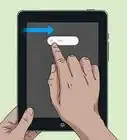
3Swipe up on the app that you want to close. You can also use two fingers to swipe two apps at once.
-
4Press the Home button when finished. This will return you to the Home screen.[2]


Method 2
Method 2 of 3:Resetting a Frozen iPad
-
1Press and hold the Sleep/Wake and Home buttons. The Sleep/Wake button can be found along the top of the iPad, and is used to turn the screen on and off. The Home button is in the center at the bottom.
-
2Hold both buttons until you see the Apple logo. The screen will shut off before the Apple logo appears. Continue to hold both buttons until you see the logo.[3]
-
3Wait while your iPad finishes booting. Once you see the Apple logo, you can release the buttons and wait while your iPad finishes booting up. This may take a minute or two.


Method 3
Method 3 of 3:Deleting Apps
-
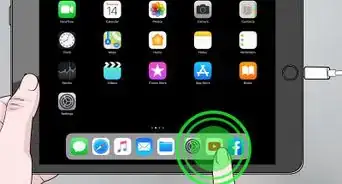
1Press and hold any app on your Home screen. The apps will begin wiggling after a moment.
-
2Find the app you want to delete. You can switch your Home screens while the apps are wiggling.
-
3Tap the "X" in the corner of the app you want to delete.
-
4Tap "Delete" when prompted. The app will be deleted. You can download it again at any time from the App Store.










References
About This Article

1. Double-tap the home button.
2. Swipe left or right to the app.
3. Swipe up on the app to close it.