X
This article was written by Nicole Levine, MFA. Nicole Levine is a Technology Writer and Editor for wikiHow. She has more than 20 years of experience creating technical documentation and leading support teams at major web hosting and software companies. Nicole also holds an MFA in Creative Writing from Portland State University and teaches composition, fiction-writing, and zine-making at various institutions.
This article has been viewed 1,656 times.
This wikiHow teaches you how to clear temporary files from a Windows or macOS computer. You can accomplish this in Windows by deleting the files from the Temp folder, and on macOS by rebooting the computer.
Steps
Method 1
Method 1 of 2:Windows
Method 1
-
1Press ⊞ Win+R. This opens the Run dialog.
-
2Type temp and press ↵ Enter. A permissions warning will appear.
-
3Click Continue to grant permission. A list of cached files will appear.
-
4Select all files in the right panel. To do this, click and drag the mouse across all of the files until they’re all highlighted.
-
5Press Del. It’s usually at the top-right corner of your computer’s keyboard. This clears your system’s temporary file cache.
- You may have to enter your administrator password to delete the files.


Method 2
Method 2 of 2:macOS
Method 2
-
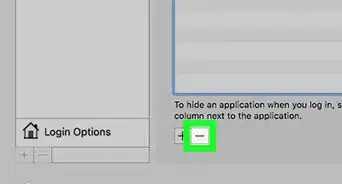
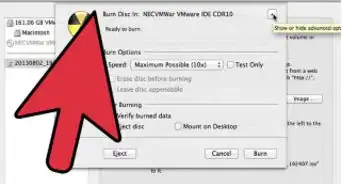
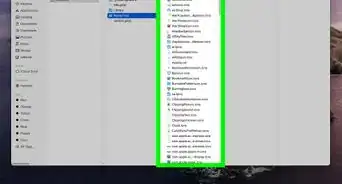
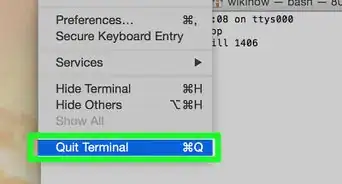
1Close all open programs on your Mac. Although there is no safe way to delete the system cache while your Mac is running, rebooting the system will clear the it automatically.[1] This method will teach you how to restart the computer safely.
-
2
-
3Click Restart. Your Mac will now shut down and restart, deleting the system cache in the process.




-Step-6.webp)

About This Article

Nicole Levine, MFA
Tech Specialist
This article was written by Nicole Levine, MFA. Nicole Levine is a Technology Writer and Editor for wikiHow. She has more than 20 years of experience creating technical documentation and leading support teams at major web hosting and software companies. Nicole also holds an MFA in Creative Writing from Portland State University and teaches composition, fiction-writing, and zine-making at various institutions. This article has been viewed 1,656 times.
How helpful is this?
Co-authors: 1
Updated: March 29, 2019
Views: 1,656
Categories: Mac OS X