This article was written by Nicole Levine, MFA. Nicole Levine is a Technology Writer and Editor for wikiHow. She has more than 20 years of experience creating technical documentation and leading support teams at major web hosting and software companies. Nicole also holds an MFA in Creative Writing from Portland State University and teaches composition, fiction-writing, and zine-making at various institutions.
This article has been viewed 48,400 times.
This wikiHow teaches you how to change Twitter’s language on your PC or Mac.
Steps
-
1Go to https://www.twitter.com in your web browser. You can use any modern web browser to access Twitter, such as Safari, Chrome, or Firefox.
- If you’re not logged in, log in now with your Twitter username and password.
-
2Click the circle containing your profile image. It’s at the top-right corner of the screen.
-
3Select Settings and privacy.
-
4Select a language from the drop-down menu. The menu is next to the word “Language” and displays Twitter’s current language. Click the menu, then select a new language from the options.
-
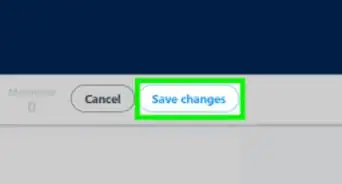
5Scroll down and click Save changes. It’s near the bottom of the screen. A pop-up window will appear.
-
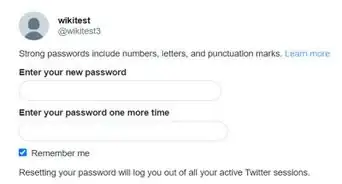
6Retype your Twitter password. This is required for security purposes.
-
7Click Save changes. Twitter will now display in your new language.


Community Q&A
-
QuestionWhat do I do on mobile?
 Community AnswerThe same steps apply, just open your app and follow the steps.
 -
QuestionWhat do I do if i don't have an account?
 Community AnswerYou would need to sign up for a twitter account.
 -
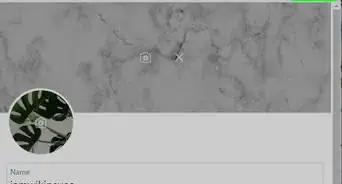
QuestionHow can I change my Twitter profile?
 WFTop AnswererLog in to your Twitter account and navigate to "Profile". Click on the "Edit Profile" button and start editing. Read How to Edit Your Profile Settings on Twitter for more information.
 -
QuestionSomeone changed our language to Chinese and I cannot figure out how to change it back to English.
 Agraz Milind21Community AnswerUse Google Translate to translate and identify the following destinations. Go to Settings, click on accessibility, display and languages, Click on Display Languages, Change it back from Mandarin to English.







About This Article

1. Sign in to https://www.twitter.com.
2. Click the small version of your profile picture.
3. Select Settings and privacy.
4. Select a language.
5. Click Save changes.
6. Retype your password.
7. Click Save changes.