This article was written by Jack Lloyd. Jack Lloyd is a Technology Writer and Editor for wikiHow. He has over two years of experience writing and editing technology-related articles. He is technology enthusiast and an English teacher.
The wikiHow Tech Team also followed the article's instructions and verified that they work.
This article has been viewed 517,718 times.
This wikiHow teaches you how to make a web browser other than Safari your default web browser on a Mac computer. Common third-party browsers include Google Chrome, Firefox, and Opera, but you can set any browser that's installed on your Mac as the default browser.
Steps
-
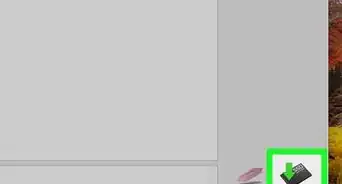
1Download your preferred web browser. If you don't already have the web browser that you want to use installed on your Mac, you'll need to download it before proceeding:
- Google Chrome - Go to Chrome's download page and click the blue DOWNLOAD CHROME button.
- Firefox - Go to Firefox's download page and click the green Download Now button.
- Opera - Go to Opera's download page and click the green Download now button.
-
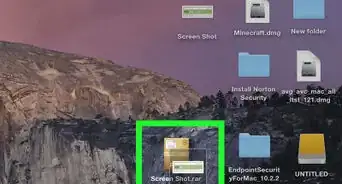
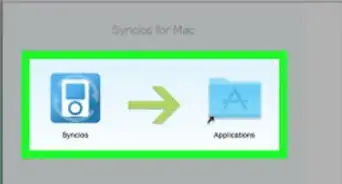
2Install your browser. To do so:
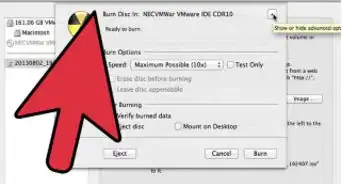
- Double-click the downloaded DMG file.
- Follow any on-screen prompts if available.
- Click and drag the browser's icon onto the Applications folder shortcut.
- Hold down Control while clicking the DMG window.
- Click Eject in the drop-down menu.
-
3
-
4Click System Preferences…. It's near the top of the drop-down menu. Doing so opens the System Preferences window.
-
5Click General. This option is near the top-left corner of the System Preferences window. You can change your web browser from here.[1]
-
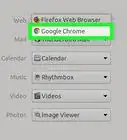
6Click the "Default web browser" drop-down box. It's in the middle of the page. Doing so prompts a drop-down menu.
-
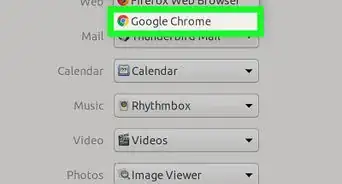
7Select a browser. In the drop-down menu, click a browser that you want to use. As long as the browser is installed on your computer and is up to date, it should show up as an option here.
- If you don't see the browser that you want to use, restart your Mac and then re-open the System Preferences window to try again.
-
8Exit the System Preferences window. Your settings will be saved; any links or app extensions should now open in your new default browser.


Community Q&A
-
QuestionMy Mac 10.7.5 is too old for supported Safari or Chrome. What browsers can I use?
 Community AnswerFirefox is still supported on old versions of OSX. This is important for old apple computers that can't update to the latest version of OSX.
 -
QuestionWhere is the browser located on the screen?
 Community AnswerThat depends on what browser you are looking for and where you have saved it. You can usually find 'Safari' already installed on the dock, but if not, you can always go to the 'Applications' folder on Finder and move it into the dock from there.
 -
QuestionHow do I set safari as the default?
 Margaret Althea ElvenshadowCommunity AnswerOpen Safari. Click "Safari" in the Apple menu at the top of your screen. Go to "Preferences>General>Default Web Browser," and click the option you want.
Warnings
- Some web browsers (e.g., Internet Explorer) don't work on a Mac.Thanks!



-Step-6.webp)

References
About This Article
1. Download and install your preferred browser.
2. Click the Apple menu icon.
3. Click System Preferences...
4. Click General
5. Click the "Default Web Browser" drop-down box.
6. Click your preferred browser.