This article was written by Katie Double. Katie Double is a Technology Writer and Editor for wikiHow. She has over five years of experience in technical support, IT process analysis, and quantitative research. Katie loves exploring the application of various technological tools, from data analysis and visualization to music production and performance. Though originally from Denver, Colorado, she currently resides in New Zealand. She has a BA in Psychology from the University of Colorado Boulder.
This article has been viewed 1,564 times.
This wikiHow teaches you how to change the different types of banners in your Etsy shop. You can change the shop banner, which is the large image that appears at the top of your Etsy shop's page, as well as the banner that appears on your order receipts.
Steps
Part 1
Part 1 of 2:Changing Your Shop Banner
-
1Go to https://www.etsy.com/. Use any browser on your computer, phone, or tablet.
-
2Log in to your account if you are not already signed in. Click Sign in from the top right, and enter your credentials.Advertisement
-
3Click Shop Manager. This is at the top, near the right.
-
4Click on the pencil icon next to your shop's name. This is in the left side panel, in the "Sales Channels" section at the bottom[1] .
-
5Click the pencil icon on your current banner. It can be found in the bottom right corner of the image.
-
6Click Change layout. This is in the top left corner of the current banner image.
-
7Select a banner style. You can choose between a small or large banner. Click on the type you want, then click Done at the bottom.
-
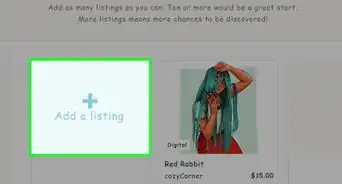
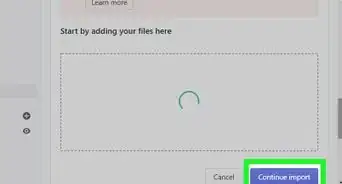
8Tap Add an image. This will open the file explorer on your computer.
-
9Select an image to use. Look through your folders in the left and find your image. Double-click to add it.
-
10Click Save. This is a button in the bottom right. Your new banner will be saved to your Etsy shop.[2]Advertisement


Part 2
Part 2 of 2:Changing Your Receipt Banner
-
1Go to https://www.etsy.com/. Use any browser on your computer, phone, or tablet.
-
2Log in to your account if you are not already signed in. Click Sign in from the top right, and enter your credentials.
-
3Click Shop Manager. This is at the top, near the right.
-
4Click Settings. This is near the bottom of the left side panel, just above "Sales Channels"[3] .
-
5Click Info & Appearance. This is a tab at the top.
-
6Click Choose file next to "Order Receipt Banner". This will open the file explorer on your computer.
-
7Select an image to use. Look through your folders on the left and find your image. Double-click to add it.
-
8Click Save. This is a button in the bottom right.Advertisement


References
About This Article
1. Go to https://www.etsy.com/ and sign in.
2. Click Shop Manager.
3. Click the pencil next to your shop's name on the left.
4. Click the pencil icon on your banner, then click Change layout.
5. Choose a layout.
6. Select an image to upload.