X
This article was co-authored by Chris Batchelor. Chris Batchelor has been working with Shipt delivery services since July 2018. He has completed over 100 deliveries and works carefully to keep up with changes to the service and its processes.
This article has been viewed 3,076 times.
If you just had a Shipt order shopped from a Shopping location but set an incorrect tip, this article will explain how you can adjust this tip.
Steps
-
1Wait for your order to be delivered. Many Shoppers will take a photo and send it to you, and others may text you to say that it's there. If you provided Shipt with a landline number, you may get a call from your Shopper saying that it's at your place. When your order is delivered, you'll get a notification reading "Hi (name), thanks for letting us make your day a little easier! Now's a great time to rate your shopper, (Shopper name)!"
- Realize that you will only have two hours between the time of drop-off to the time your Shopper would receive your tip to change your tip. If you don't change it, the Shopper will receive the Shopper Tip provided when you originally sent in your order.
- You may tap the notification to go into rating. However, Shipt always asks you to check your tip before you begin rating - though their notification reads as if their next step is to rate the Shopper.
-
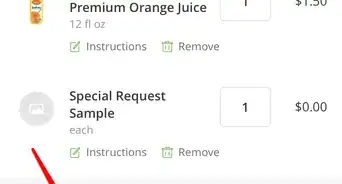
2Tap the Shopper Tip line of the app - if you chose to open your order and see the full order details. It'll show you your current tip you are giving the Shopper. This original tip was set when you first created the order.Advertisement
-
3Double-check that you are giving the right shopper the tip. Your Shopper's name and profile picture is provided at the top of the screen prior to the "Add a tip for (name)" label.
-
4Recognize that 100% of your tip is going to your Shopper. Shipt isn't collecting any money from these tips. It's said below the label that "100% of tips go directly to shoppers."
-
5Tap the "Shopper Tip" line. This should be directly below the line with the unfilled graphical stars.
-
6Tap the better choice for the better tip. Shipt provides some even-dollar amount standard tips that are mostly used - including $5, $10, or $15. However, tapping the "Other" box will allow you to set a customizable tip of something other than these amounts.
- If you don't wish to tip your Shopper after-all, you can tap the "No Tip". This button should only be used if you chose to give your Shopper a paper tip (provided in an envelope or similar) that you know they've taken with them.
- If you're trying to find a compromise of how much to give your shopper, there's a "Receipt" link in the top right corner. However, your order's subtotal line information is provided below the "No Tip" button and just above the "Delivered on (date)" line - well above the save.
-
7Tap the Save button at the bottom of the screen.
-
8Continue rating the Shopper, utilizing the Rating information provided (if you chose to tap the notification).Advertisement
Warnings
- Many Shoppers will bend over backward to make sure you get what you need. Some may even go out of their way to get the stuff elsewhere. But if you don't provide a tip (either digitally or through paper money) they will likely not shop for your orders in the future.Thanks!
Advertisement


About This Article
Advertisement