This article was written by Nicole Levine, MFA. Nicole Levine is a Technology Writer and Editor for wikiHow. She has more than 20 years of experience creating technical documentation and leading support teams at major web hosting and software companies. Nicole also holds an MFA in Creative Writing from Portland State University and teaches composition, fiction-writing, and zine-making at various institutions.
This article has been viewed 523,179 times.
This wikiHow teaches you how to update your profile picture on YouTube using a computer, phone, or tablet. Because your YouTube account is linked to your Google account, you'll need to make your profile photo change in your Google account settings. Changing your profile photo will also change it on other Google apps, including Gmail and Hangouts.
Steps
Method 1
Method 1 of 2:Mobile
-
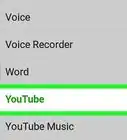
1Open the YouTube app on your phone or tablet. It's the red rectangle icon containing a white sideways triangle.
-
2Tap your current profile picture. It's in a circle at the top-right corner. If you don't have a photo, you'll see your first initial instead.Advertisement
-
3Tap Manage your Google Account. It's at the top of the menu below your email address. This opens your Google Account screen.
-
4Tap your current photo. It's at the top-center part of the screen. A pop-up alert will appear.
-
5Tap Set Profile Picture on the pop-up. Now you'll see two new options.
-
6Tap Choose from photos to upload a photo from your phone or tablet. This opens your phone or tablet's gallery.
- If you'd rather take a new photo right now with your camera, tap Take photo to open the camera instead.
-
7Select a photo and tap Accept. If you captured a new photo instead of selecting one, tap Use photo instead. Your new profile photo now represents you on YouTube and in all other Google apps.Advertisement


Method 2
Method 2 of 2:Using a Computer
-
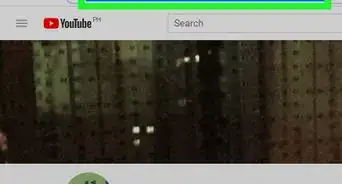
1Go to https://www.youtube.com in a web browser. You can use any web browser of your choice on PC or Mac.
- If you are not signed in to YouTube, click Sign In in the upper-right corner and sign in with the email address and password associated with your YouTube/Google account.
-
2Click your current profile photo or initial. It's in the upper-right area of the page.
-
3Click Manage your Google Account. It's near the top of the menu below your email address.
-
4Hover the mouse cursor over your current profile photo. It's in the large circle at the top-center part of the page. A camera icon will appear on the photo.
-
5
-
6Select the photo you want to use.
- If the photo you want to use is saved on your computer, drag it to the "Drag a profile photo here" box, or click Select a photo from your computer to browse for the file.
- If you want to use a photo from your Google Photos, click the Your photos tab, then select the photo you want to use.
-
7Click Set as profile photo. It's the blue button at the bottom-left corner of the "Select profile photo" window. Now that you've set a new photo for your Google account, the photo will also appear on your YouTube profile, in Gmail, and on all other Google services.Advertisement


Community Q&A
-
QuestionWhy can't I do this on my tablet?
 Community AnswerIt could possibly be due to some minor bugs on your tablet. Try a computer instead.
 -
QuestionIs there any way to change at least the Google+ picture without changing my YouTube picture?
 Community AnswerProbably not, as your Google profile defaults as your YouTube profile.
 -
QuestionHow can I do this on a tablet?
 Community AnswerOpen the Google+ site on your device. On your left, you see a menu. Click on My Profile. Your profile picture will be shown, and you can tap the picture to change it.
 -
QuestionHow can I change my YouTube profile picture without Google Plus or a mobile device?Community AnswerYou can change your YouTube profile picture without a mobile device, as is said in Method 1: Using a Computer. However, a Google+ account is now required to use Google services.
-
QuestionHow do I change my YouTube picture on my phone?
 Community AnswerGo into the settings menu and you should be able to tap on your current profile picture to change it.
 -
QuestionI don't have a Google+ account. What should I do?Community AnswerYou need to make a Google account in order to change your profile picture.
-
QuestionWhat do I do if I got a message that I changed the profile picture, but the picture didn't show up?Community AnswerRefresh the page. If that doesn't work, check that the size of the pic is not too big.
-
QuestionWhat should I do if the tiny camera is not showing next to the picture on my profile so I can change it?Community AnswerIf you are on a mobile, then go to Settings and make sure you have allowed YouTube to use photos.
-
QuestionI have changed my profile picture but when I comment it does not show upCommunity AnswerGive it an hour or two, the YouTube servers need time to update your profile.
-
QuestionWhat do I do if YouTube shows an error message when I try to upload my photo?Community AnswerTry again. It did the same thing for me at first but then I tried it again the second time and it worked fine.



About This Article

1. Open YouTube.com.
2. Click your profile photo or initial.
3. Click Manage your Google Account.
4. Hover the mouse over your current photo.
5. Click the camera icon.
6. Select a photo.
7. Click Set as profile photo.
To learn how to change your profile picture on YouTube, keep reading!