This article was written by Jack Lloyd. Jack Lloyd is a Technology Writer and Editor for wikiHow. He has over two years of experience writing and editing technology-related articles. He is technology enthusiast and an English teacher.
The wikiHow Tech Team also followed the article's instructions and verified that they work.
This article has been viewed 305,547 times.
This wikiHow teaches you how to change the name of your channel on YouTube. Keep in mind that changing the name associated with a Google Account will also change your name in any connected Google services, such as Gmail. You can change your channel name on both desktop and mobile versions of YouTube.
Steps
Method 1
Method 1 of 2:On Desktop
-
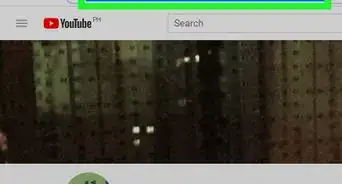
1Open YouTube. Go to https://www.youtube.com/ in your computer's web browser. This will take you to the YouTube home page.
-
2Click your profile icon. This circular icon is in the top-right side of the page. A drop-down menu will appear.
- If you see SIGN IN here instead, click SIGN IN, then enter your email address and password. You can then click your profile icon.
-
3Click Settings. It's in the middle of the drop-down menu. Doing so opens your YouTube account's settings page.
-
4Select a different channel if necessary. If you're currently logged into a different channel than the one you want to edit, click your profile icon in the top-right side of the page, then click the name of the channel you want to edit.
- It may take a few seconds for the other channel(s) to appear in the drop-down menu.
-
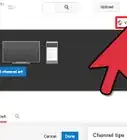
5Click Edit on Google. It's a link to the right of the profile image in the "Your YouTube channel" section. Doing so prompts a pop-up window.[1]
-
6Change your channel name. In the text box that's in the middle of the pop-up window, type in the name you want to use.
- Keep in mind that you can only change your channel name every 90 days.
-
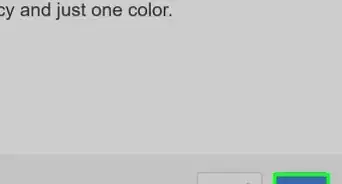
7Click OK. It's at the bottom of the pop-up window.
-
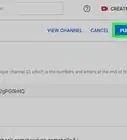
8Click CHANGE NAME when prompted. Doing so will confirm that you want to change your name and save your settings. Your channel name should now be updated, though it may take a few minutes to display the updated channel name elsewhere.
- You might not be prompted to click this. If so, your channel name has been changed.


Method 2
Method 2 of 2:On Mobile
-
1Open YouTube. Tap the YouTube app icon, which resembles a white triangle on a red background.
- If you aren't signed into YouTube, select your account and/or enter your email address and password to sign in before proceeding.
-
2Tap your profile icon. It's a circle in the top-right corner of the screen. A pop-up menu will appear.
-
3Select a different channel if necessary. If you want to change the name of a different channel than the one you're logged into, tap to the right of your channel name in the top-left corner of the screen, then tap the name of the channel you want to edit. You'll then tap the profile icon again to re-open the menu.
- It may take a few seconds for your other channels to appear in the drop-down menu here.
-
4Tap My channel. This option is at the top of the menu.
-
5
-
6
-
7


Community Q&A
-
QuestionHow can I change the name in 2017, because it apparently says Edit on Google, not Google+?
 Community AnswerGo to change your profile picture on your google account. Once you are on Google+ then exit out of the profile picture. Press the edit button next to your current youtube name, then you can change your name.
 -
QuestionHow can I change my YouTube channel name unlimited times?Community AnswerYoutube doesn’t allow users to change their name unlimited times. You only get three name changes every 90 days.
-
QuestionIt is saying it will change on other Google products too. Will it?
 AdrianTop AnswererYes, it will change your display name on ALL Google products, including Gmail. If you would not like your profile name to be changed, create a brand channel where you can use a custom name.
 -
QuestionHow do I change my name into a nickname on YouTube?
 Community AnswerCheck out the guide: How to Change You Channel Name on YouTube . Be advised that this changes your name across all Google Platforms, for example your Gmail account, so keep that in mind. However you can freely change your name 3 times every 90 days.
 -
QuestionHow do I change my name on YouTube if it's saying I changed it too recently?
 Community AnswerThere are limits to how often you can change your name. You can change your name three times every 90 days. If you recently changed your name three times, you may need to wait up to three months to change it again.
 -
QuestionI'm trying to change my channel name but I'm getting a message that says 'changed to recently'. What should I do?Community AnswerThere are limits to how often you can change your name. You can change your name three times every 90 days. If you recently changed your name three times, you may need to wait up to three months to change it again.
Warnings
- You can't change your channel name more than three times per 90-day period.Thanks!




About This Article
1. Go to https://www.youtube.com.
2. Click your profile photo.
3. Click Settings.
4. Click Edit on Google.
5. Enter a new channel name.
6. Click OK.
7. Click Change Name.