X
wikiHow is a “wiki,” similar to Wikipedia, which means that many of our articles are co-written by multiple authors. To create this article, 9 people, some anonymous, worked to edit and improve it over time.
This article has been viewed 36,833 times.
Learn more...
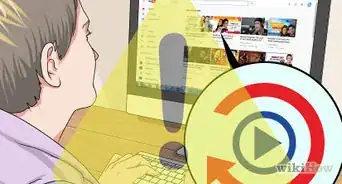
Your Channel Icon shows overlaid on your Channel Art banner, and as the watch page icon for videos viewed on YouTube watch pages. In the past, the Channel Icon was referred to as your “Channel Avatar.” Here is a Simple Guide on How to Change Your YouTube Channel Icon.
Steps
-
1Open Your Favorite Browser.
-
2Go to Youtube.com.Advertisement
-
3Click Sign in Button at the Top Right Corner of the Page.
-
4Enter Your Email address and password.
-
5Click “Sign in”.
-
6Click on Your Thumb Image at Top Right Corner of the Page.
-
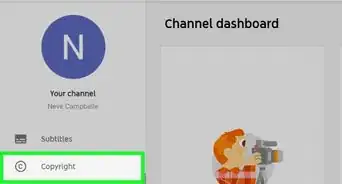
7Click on “Creator Studio” Button.
-
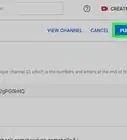
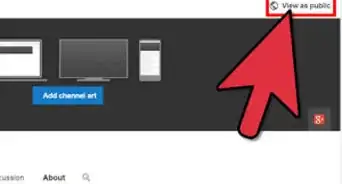
8Click on “View Channel” Link.
-
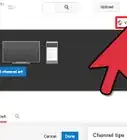
9Hover Your Mouse on Channel Image and Click on the “Pencil Icon”.
-
10Click “Edit on Google Plus”.
-
11Upload an Image From Your Computer.
-
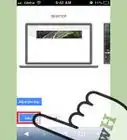
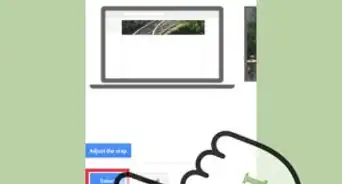
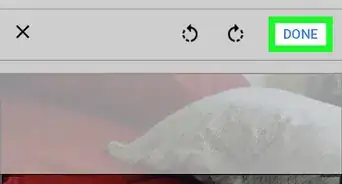
12Crop the Image If You Wish and Click "Set as Profile Photo".
-
13As you can see, Google Plus Profile picture has been changed. Same should reflect on YouTube as well.
-
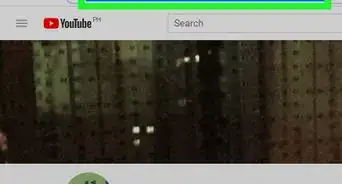
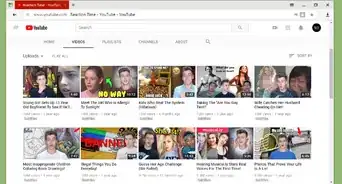
14Now, Navigate to YouTube.com and Hit Refresh.As you can see, Profile Picture has been changed in YouTube as well.
-
15This is How You can Change Your Channel Icon on YouTube.Advertisement


Community Q&A
-
QuestionMy icon is only partly or not changed at all after only ten minutes. What do I do?
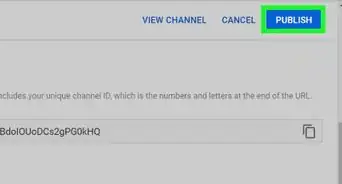
 Community AnswerSometimes YouTube glitches and it doesn't work. Make sure you hit save before checking back. If it doesn't work, just try again.




About This Article
Advertisement