This article was written by Nicole Levine, MFA. Nicole Levine is a Technology Writer and Editor for wikiHow. She has more than 20 years of experience creating technical documentation and leading support teams at major web hosting and software companies. Nicole also holds an MFA in Creative Writing from Portland State University and teaches composition, fiction-writing, and zine-making at various institutions.
The wikiHow Tech Team also followed the article's instructions and verified that they work.
This article has been viewed 2,501 times.
This wikiHow teaches you how to edit your home address in Google Maps using an iPhone or iPad.
Steps
-
1Open Google Maps on your iPhone or iPad. It’s the map icon with a “G” and a red pushpin. You’ll usually find it on one of your home screens.
-
2Tap ≡. It’s at the top-left corner of the screen.
-
3Tap Your places. It’s the first item in the menu. This brings you to the “Labeled” tab on the “Your Places” screen.
-
4Tap ⋯ next to the location you want to edit. If it’s your home address, tap the three dots next to “Home.”
-
5Tap Edit Home. If you selected a location other than “Home” (such as Work), you’ll see that label instead.
-
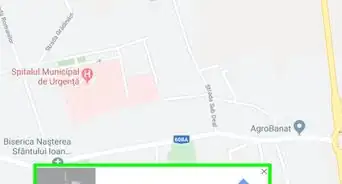
6Click X next to your current address. It’s in the box at the top of the screen.
-
7Enter the new address. As you type, suggestions will appear at the bottom of the screen. Tap the correct address when it appears, or press the Done key when you’re finished typing. The address will then be updated.
- If you prefer to choose the address from a map, tap Choose on map, drag the map to the location, then tap OK.
- To select an address associated with a contact, tap Choose from Contacts, then select the contact who shares your address.


About This Article

1. Open Google Maps.
2. Tap ≡.
3. Tap Your places.
4. Tap ⋯
5. Tap Edit Home.
6. Click X next to the address.
7. Enter the new address.