This article was co-authored by wikiHow Staff. Our trained team of editors and researchers validate articles for accuracy and comprehensiveness. wikiHow's Content Management Team carefully monitors the work from our editorial staff to ensure that each article is backed by trusted research and meets our high quality standards.
The wikiHow Tech Team also followed the article's instructions and verified that they work.
This article has been viewed 92,393 times.
Learn more...
Paid movies and TV shows have made their way to YouTube. If you want to watch them, you'll have to pay[1] ; this wikiHow will show you how to do just that using your web browser or the mobile app.
Steps
Method 1
Method 1 of 2:Using a Web Browser
-
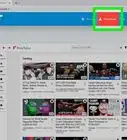
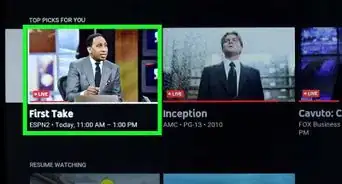
1Find the video you want to watch on https://youtube.com. You can find a section of recommended watching listed on your Home page or you can click Movies & Shows from the panel on the left side of your web browser.
- Log in to be able to purchase paid videos on YouTube.
- If you know the name of the show or movie you want to buy, you can search for it in the search bar at the top of the page.
- Click on the video to see its details and you'll see buttons to buy or rent the TV show or movie in various locations around the page. If it's a movie, a trailer will play.
-
2Click Buy or Buy or Rent. You'll see a buy or rent button in the top right corner of a movie's name or it'll be to the right of the playlist if you're looking to purchase an episode of a TV show.
- If the video has a buy or rent option, you'll need to select one. You'll also need to select a resolution to continue.
- You also have the option here to buy a TV show season or just one episode. Make sure you select the correct option.
- If you have a coupon code, enter it in the appropriate field.[2]
-
3Review your purchase and select your payment method. You'll see a breakdown of your purchase including taxes. Click the listed payment method if you want to change it or select Add PayPal or Add credit or debit card to enter a new card.
-
4Click Pay Now. It's in the bottom right corner of the payment window. You can find purchased videos at https://www.youtube.com/purchases.


Method 2
Method 2 of 2:Using the Mobile App
-
1Open the YouTube mobile app and find the video you want to watch. Tap Explore at the top of your screen (if you don't see it, drag your finger down your screen), then tap Movies & Shows.
- If you know the name of the show or movie you want to buy, you can search for it in the search bar at the top of the page instead.
- Tap the video to see its details and you'll see buttons to buy or rent the TV show or movie in various locations around the page. If it's a movie, a trailer will play.
-
2Tap Buy or Buy or Rent. You'll see a buy or rent button under the movie's trailer or below the TV show's season playlist.
- If the video has a buy or rent option, you'll need to select one. You'll also need to select a resolution to continue.
- You also have the option here to buy a TV show season or just one episode. Make sure you select the correct option.
- If you have a coupon code, enter it in the appropriate field.[3]
-
3Review your purchase and select your payment method. You'll see a breakdown of your purchase including taxes. Tap the listed payment method if you want to change it or select Add PayPal or Add credit or debit card to enter a new card.
-
4Tap Pay Now. It's at the bottom of the payment window. You can find purchased videos at https://www.youtube.com/purchases.
- Most Androids and iPhones or iPads using the latest version of the YouTube app will play HD videos.


Community Q&A
-
QuestionWill purchased movies be downloaded?
 ICGILCommunity AnswerEven if you have YouTube Premium, any bought movies/TV Shows cannot be downloaded for offline use.
 -
QuestionWill I get charged each month for renting a movie on YouTube?ICGILCommunity AnswerIn this case, no. If you buy something, you will not be charged each month like a subscription.
-
QuestionWhen I download a movie is it just once or can I see it again without paying?ICGILCommunity AnswerOnce you pay for the movie (either by rent or buying) you can watch it over and over without needing to pay. However, if it is rented, there will be an expiry date, after which you can't watch it again without renting it.
-
QuestionI purchased something just now on YouTube and I can’t watch it. How do I watch it?ICGILCommunity AnswerIf you're trying to find the video on mobile devices, it should appear in the library under purchases. On the computer, click on the 3 right lines on the top-left corner and click on purchases.
-
QuestionAfter buying some episodes of a show, do I get a discount on buying the whole season?ICGILCommunity AnswerIn this case, no. You will need to buy all of the season if you want to get a discount on the whole thing.
-
QuestionWill purchased movies be uploaded in our channel without getting a copyright strike?ICGILCommunity AnswerPurchased movies will not be auto-uploaded to your channel, so you can simply avoid a copyright strike by not recording the full movie or by downloading the movie from elsewhere.
-
QuestionCan I give a purchased video as a gift to another YouTuber?ICGILCommunity AnswerIf you are trying to gift someone a purchased video, this is not possible. However, you can try exchanging a Google Play gift card, and they will then be able to buy their shows/movies.
References
About This Article

1. Find the video you want to watch on https://youtube.com.
2. Click Buy or Buy or Rent.
3. Review your purchase and select your payment method.
4. Click Pay Now.