This article was written by Nicole Levine, MFA. Nicole Levine is a Technology Writer and Editor for wikiHow. She has more than 20 years of experience creating technical documentation and leading support teams at major web hosting and software companies. Nicole also holds an MFA in Creative Writing from Portland State University and teaches composition, fiction-writing, and zine-making at various institutions.
This article has been viewed 72,267 times.
This wikiHow teaches you how to prevent the majority of foul language and mature themes from showing up on YouTube, as well as how to block offensive words or phrases from appearing in the comments on your own content. You can enable Restricted Mode anywhere you log in to YouTube to block all mature content, including profanity. If you're looking to block foul language in your own channel's comments section, you can add the words you don't want to see to your Blocked Words list.
Steps
Method 1
Method 1 of 4:Enabling Restricted Mode (iPhone or iPad)
-
1Open YouTube. It's a white app with the red YouTube symbol on it. If you're signed in to YouTube, doing so will open your YouTube Home Page.
- If you aren't signed in, tap the gray profile icon at the top-right corner and select Sign in to do so now.
-
2Tap your profile picture. You'll find this in the top-right corner of the screen.
- If you haven't yet assigned yourself a profile picture, you'll instead see a person-shaped icon or the first letter of your name here.
Advertisement -
3Tap Settings. It's toward the bottom of the menu.
-
4Slide the "Restricted Mode" switch to On . It's one of the options under the "YOUTUBE" header. As long as this switch is on (green), all potentially mature content, including foul language, will be blocked for this account on your iPhone or iPad.Advertisement


Method 2
Method 2 of 4:Enabling Restricted Mode (Android)
-
1Open YouTube. It's a red app with a white "Play" icon on it. YouTube will open to your Home Page if you're already signed in.
- If you aren't signed in, tap the gray profile icon at the top-right corner and select Sign in to do so now.
-
2Tap your profile photo. It's at the top-right corner of the screen. A menu will expand.
- If you haven't yet assigned yourself a profile picture, you'll instead see a person-shaped icon or the first letter of your name here.
-
3Tap Settings. It's near the bottom of the menu.
-
4Tap General. It's near the top of the menu.
-
5Slide the "Restricted Mode" switch to On . It's toward the bottom of the general menu. As long as this switch is On (blue), all potentially mature content, including foul language, will be blocked for this account on your phone or tablet.Advertisement


Method 3
Method 3 of 4:Enabling Restricted Mode (Desktop)
-
1Go to https://www.youtube.com in a web browser. YouTube will open to the Home Page if you're already signed in.
- If you aren't already signed into YouTube, click Sign in in the top-right corner of the page, enter your email address and password, and click Sign in again.
-
2Click your profile photo. It's at the top-right corner of the screen. A menu will expand.
- If you haven't yet assigned yourself a profile picture, you'll instead see a person-shaped icon or the first letter of your name here.
-
3Click Restricted Mode. It's at the very bottom of the menu.
-
4Slide the button next to "ACTIVATE RESTRICTED MODE" to On . As long as this option is activated, you will not see explicit content, including foul language, while using this YouTube account in your browser.Advertisement


Method 4
Method 4 of 4:Blocking Inappropriate Comments on Your Videos
-
1Go to https://www.youtube.com in a web browser. YouTube will open to the Home Page if you're already signed in.
- If you aren't already signed into YouTube, click Sign in in the top-right corner of the page, enter your email address and password, and click Sign in again.
-
2Click your profile picture. It's in the top-right corner of the page. A menu will expand.
- If you don't have a profile picture, you'll instead click the person-shaped silhouette or the first letter of your name here.
-
3Click YouTube Studio. It's near the top of the menu.
-
4Click Settings. It's near the bottom of the left panel.
- If you don't see a menu running along the left side of the screen, click the menu icon (three horizontal lines) at the top-left corner of the page to open it.
-
5Click the Community tab. It's on the left side of the window at the bottom of the menu.
-
6Type the words you wish to block in the "Blocked words" area. This field is at the bottom of the page. Any words you enter here will be filtered from the comments on your videos by default.
- When adding words to this list, place a comma and a space after each word (for example: "Banana, Microsoft, Elephants").
- If you want to enter a phrase, place a comma after the last word in the phrase to separate it from the other words/phrases in this list.
-
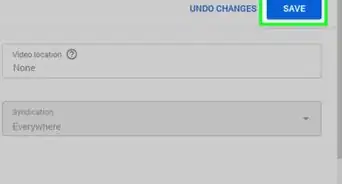
7Click Save. It's the blue button at the bottom of the window. YouTube will now hold any comments containing the blocked words for review. The comments will not appear on your video unless you approve them manually.
- You can review and approve held comments in YouTube Studio by clicking Comments and selecting the Held for review tab at the top.[1]
Advertisement


Community Q&A
-
QuestionHow do I choose the bad words I bleep out on YouTube?
 Tom De BackerTop AnswererThere are lists that can be found online, and many television stations also publish their guidelines, as do newspapers. Generally, it is clear which words need to be blocked, though. So block the obvious ones, and don't block the ones you doubt.
 -
QuestionSince YouTube has a CC transcript of each video, they have the ability to silence foul language. Why don't they do it?Tom De BackerTop AnswererIt is anyone's guess as to how YouTube decides on its policies. They are a company, and can organize themselves any way they see fit. However, one clear reason why they are not doing this is the sheer volume of videos uploaded each day. It would take thousands of people editing thousands of hours every day, which is an enormous cost.
-
QuestionAre there any language filters so I can just block out the actual inappropriate language, but still watch the video?Tom De BackerTop AnswererNo. Use the content warnings and stay away from channels where you know people use such language. If the creator of the video did not themselves edit out these instances, there is no way to stop them from coming into your ears.
-
QuestionHow do I block bad words in audio?
 Community AnswerYou can use editing apps for that; there are many from which to choose on Google Play.
 -
QuestionWhat is the flag menu on the comments page?
 RubyTop AnswererThe flag menu on the comments page is to report comments for "harassment or bullying", "hate speech or graphic violence", "pornography or sexually explicit material" and "unwanted commercial content or spam". There's also now the option to flag a comment for "child abuse".
About This Article