X
This article was written by Jack Lloyd. Jack Lloyd is a Technology Writer and Editor for wikiHow. He has over two years of experience writing and editing technology-related articles. He is technology enthusiast and an English teacher.
This article has been viewed 18,108 times.
This wikiHow teaches you how to create a "Local Guide" account with Google in order to earn rewards through the Google Maps app. Local Guides can earn points by writing reviews, uploading photos, and updating Google Maps location information.
Steps
-
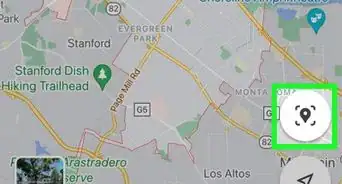
1Open the Google Maps app. If you aren't already signed into your primary Google account in the Maps app, you'll need to do so with your Google email address and password. You can't become a Local Guide without being signed in.
-
2Tap ☰. It's in the top right corner of your screen.Advertisement
-
3Tap Your Contributions. You'll find this in the first group of options in the Menu here.
- You won't be able to proceed past this point without signing into your Google account.
-
4Tap the "Get started" link. This is below the text at the top of the screen.
- If you don't see this option, make sure you're on the Contribute tab.
-
5Tap Next.
-
6Tap Join Now.
-
7Type in the name of your city. You'll do this at the top of this screen.
-
8Tap your city's name to confirm. You should see your city's name pop up in a drop-down menu below your typing.
-
9Tap the boxes on this page. There are two boxes that need checking in order for you to continue:
- I am 18 years or older and agree to the program rules.
- I agree to receive email updates about the Local Guide community.
-
10Tap Start. This will prompt Google to review your information, so you'll need to wait for a few seconds.
-
11Tap Done. You are now a local guide! Adding information about your surroundings (e.g., reviews or photos) will add points to your account. You can use your accumulated points to earn rewards like exclusive products from Google and more Drive space.
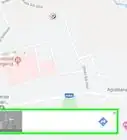
- You can add photos or reviews to a location by searching for it in Google Maps, tapping its name card at the bottom of the screen, and tapping the Add photos section or the line of stars below the contact information area.
- Some public establishments won't accept reviews, edit suggestion, or photos.
Advertisement


Community Q&A
-
QuestionAfter the recent updates there is no from and to option. What can I do?
 Community AnswerGo to your settings and see if there is another way around that update. For example, go to something like settings control.
Warnings
- If you don't check one or both of the boxes listed below the city field, you won't be able to proceed.Thanks!
Advertisement
About This Article
Advertisement