X
wikiHow is a “wiki,” similar to Wikipedia, which means that many of our articles are co-written by multiple authors. To create this article, 59 people, some anonymous, worked to edit and improve it over time.
This article has been viewed 134,388 times.
Learn more...
Pivot Stickfigure Animator is a program that makes it very easy to create stick figure animations and to save them as animated GIFs. This article will teach you how to use this highly useful program.
Steps
-
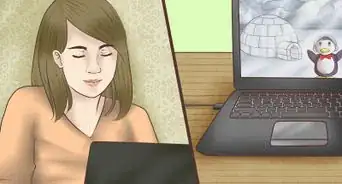
1Learn how animation works. Animations work by using pictures in frames, hundreds, perhaps thousands of pictures put together. Each picture is shown quickly; several pictures are shown to you each second, making it look like the images are moving. This happens in real live movies also, except the pictures aren't drawn, but taken.
-
2Be positive Pivot is open.
-
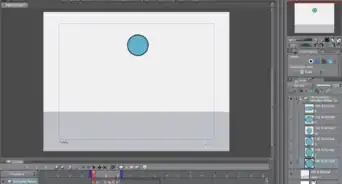
3Create any figure in Pivot, and move it into the location you want it to start out. Click "Next Frame".
-
4Move a joint a little closer to the location you want the scene to end out. You'll notice there is a gray mark where the figure last was, it's supposed to help you out if you get lost, and if you accidentally delete the figure, you can easily put it back in place.
-
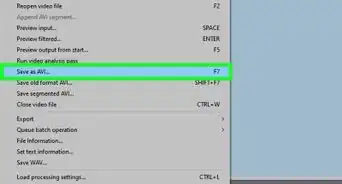
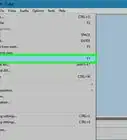
5Create an animation. Make sure it's long...300-400 frames maybe. Save it as a .piv, then a .GIF.
-
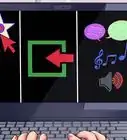
6Add some basic sounds! Open up Windows Movie Maker (to find it, search your computer). Click "Import Pictures", import your .gif animation. Drag it into the video section. Now import some music, and drag it into the audio/music section. Click "Save to my computer" and there you have it! You can also do this with a microphone: click the microphone icon in the movie maker. Click "Start Narration" and talk into your microphone along with the animation. Click done and the sound will be added!
-
7Practice scenes. Start with 1 frame, have a circle on one side of the animation... click "Next Frame", then move the circle to the other side. Click "Next Frame" and save it on repeat. Now watch it. You'll notice that the animation never ends. Import it into Windows Movie Maker, drag it into the "Video" Section, keep dragging it in. That way you can control how many times it repeats itself. This gets harder the more frames you have it on... you need to drag the figure (frame by frame) to the location it started out. It takes some practice... but you'll eventually get it.


Community Q&A
-
QuestionHow do I make the frame bigger?
 Community AnswerAs in Pivot 4.1.10, you can change it by using the edit button on the top left corner.
 -
QuestionDoes Pivot Animator require Flash?
 Community AnswerPivot Animator does not require Flash, since the only files you can export in are avi, gif, and separate images.
 -
QuestionHow do I get more stick figures?Community AnswerThere's a wonderful website for it. There are plenty of tutorials too!
-
QuestionHow can I make the animation slower?Community AnswerBy changing the FPS (frames per second).
Warnings
- Sometimes the program you're using will close itself... so save frequently as an editable file format.Thanks!
- You can't put the raw movie on Youtube but if you edit it you can.Thanks!
- ADDICTING!!Thanks!
Things You'll Need
- Pivot
- Windows Movie Maker (Optional)
- Photoshop (Optional)
- Adobe Flash (Optional)
- A Windows Computer (not yet supported on macs)