X
wikiHow is a “wiki,” similar to Wikipedia, which means that many of our articles are co-written by multiple authors. To create this article, volunteer authors worked to edit and improve it over time.
The wikiHow Tech Team also followed the article's instructions and verified that they work.
This article has been viewed 160,310 times.
Learn more...
Maybe you want to be notified whenever you get a new match on Tinder, or when someone messages you. Or, maybe you don’t want any Tinder notifications to show up on your home screen. Whatever the situation, you can adjust how, when, and where you get alerts from Tinder through the app itself, or through your iOS Notification Center.
Steps
Method 1
Method 1 of 2:Through the Tinder App
Method 1
-
1Open your Tinder app. By default, you’ll be directed to the Tinder Home screen, where you can swipe potential matches.
-
2Click on the Menu icon in the top left corner. It should look like three orange horizontal lines. Click on “Settings” to access your account settings.
-
3Adjust your “Vibrate on Notification” setting. Using the toggle bar, you can adjust whether or not your device will vibrate upon receiving a notification from Tinder. It is important to note that this setting will only work on devices that are capable of vibrating, such as the iPhone.


Method 2
Method 2 of 2:Through the Notification Center
Method 2
-
1Open your Settings from your Home screen. The icon is a set of dark grey gears on a light grey background. Then, tap "Notifications" (iOS 8) or "Notification Center" (iOS 7).
-
2Scroll down until you see Tinder on your list of apps. Click on it.
-
3Choose your Alert Style. At the top of the page, you can choose whether to receive alerts by Banners, Alerts, or none at all.
- Banners will flash across the top of the screen when you are using your phone, and show up on your lock screen when you aren’t. They require no action from the user.
- Alerts pop up in the middle of the screen, and require the user to click a button to clear the notification.
-
4Adjust whether or not you want to turn on the “Badge App Icon.” If this is turned on, a red bubble will pop up in the corner of the app icon showing how many new notifications are available. This bubble will disappear when there are no new notifications.
-
5Adjust whether or not you want to turn on Sounds. If this is turned on, your device will emit a notification sound upon receiving new notifications (unless your device is on silent).
-
6Adjust whether or not you want Tinder alerts to be displayed in your Notification Center. If you turn this setting on, you can also decide how many alerts to display at once.
-
7Decide whether you want your notifications to show up on your lock screen. This may be important if you don’t want others to know that you are using Tinder. If you turn this off, you will only get notifications while you are actively using your device.


Community Q&A
-
QuestionHow do I know who "super" likes me?
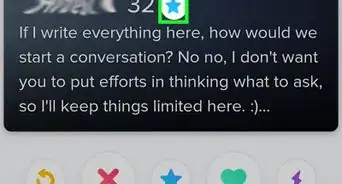
 Community AnswerYou keep swiping until you find a person whose photo shows in a blue frame with a star on the bottom.