X
wikiHow is a “wiki,” similar to Wikipedia, which means that many of our articles are co-written by multiple authors. To create this article, volunteer authors worked to edit and improve it over time.
This article has been viewed 1,189 times.
Learn more...
With Windows 10 came Cortana, Microsoft's digital assistant. This wikiHow will teach you how to activate "Hey Cortana" mode and how to use Cortana on a Windows 10 computer.
Steps
Method 1
Method 1 of 2:Activating "Hey Cortana"
Method 1
-
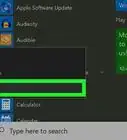
1Click the Cortana icon, which is a white circle. You'll find this in your taskbar, next to the search icon.
- If the Cortana icon is not here, right-click the taskbar and select Show Cortana button.
- You can only activate "Hey Cortana" if your computer has a microphone.
-
2
-
3Click the switch to enable it under "Hey Cortana." With this enabled, your computer will always be listening for you to say "Hey Cortana" and will most likely use more battery power.[1]


Method 2
Method 2 of 2:Asking Cortana
Method 2
-
1Click the white microphone icon in your taskbar. If you rather not speak your command, you can type a question in the search bar.
-
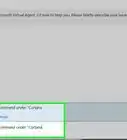
2Ask your question. You can ask Cortana what the weather will be like.
-
3Give a command. You can also tell Cortana to add an appointment to your calendar or remind you about specific interests.



References
About This Article
Article SummaryX
1. Click the Cortana icon, which is a white circle.
2. Click the settings icon.
3. Click the switch to enable it under "Hey Cortana."
Did this summary help you?