This article was written by Travis Boylls. Travis Boylls is a Technology Writer and Editor for wikiHow. Travis has experience writing technology-related articles, providing software customer service, and in graphic design. He specializes in Windows, macOS, Android, iOS, and Linux platforms. He studied graphic design at Pikes Peak Community College.
The wikiHow Tech Team also followed the article's instructions and verified that they work.
This article has been viewed 148,307 times.
This wikiHow teaches you how to update Microsoft Office on Mac. You can easily check for updates and install them in the Help menu of any Microsoft Office product.
Steps
-
1Open any Microsoft Office application. You can open Microsoft Word, Excel, PowerPoint, or Outlook. To access any of the Office apps on your Mac, click the desktop and click Go in the top menu bar, and then select Applications in the drop-down menu.
-
2Click Help. It's in the menu bar at the top of the screen.Advertisement
-
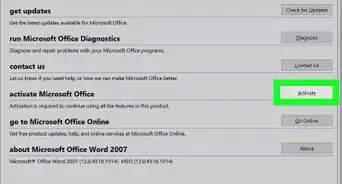
3Click Check for Updates. It's the third option in the Help menu.
- If you don't see "Check for Updates" in the Help menu, click here to download the latest version of the Microsoft AutoUpdate tool.
-
4Select "Automatically Download and Install." It's the third radio button option under the "How would you like updates to be installed?" in the Microsoft AutoUpdate tool.
-
5Click Check For Updates. It's in the lower-right corner of the Microsoft AutoUpdate tool. This will check for the latest update of Microsoft Office and install the updates.Advertisement


Community Q&A
-
QuestionStill looking for how do I update Microsoft office to 64 bit for Mac?
 PoojasruCommunity AnswerChoose Start, point to All Programs, and then choose Windows Update. Do any of the following: If updates need to be installed, choose Install updates. To start checking for updates, choose Check for updates. For more information, choose View available updates.

About This Article

1. Open any Microsoft Office app.
2. Click Help.
3. Click Check for Updates.
4. Select Automatically Download and Install.
5. Click Check for Updates.