X
This article was co-authored by wikiHow Staff. Our trained team of editors and researchers validate articles for accuracy and comprehensiveness. wikiHow's Content Management Team carefully monitors the work from our editorial staff to ensure that each article is backed by trusted research and meets our high quality standards.
This article has been viewed 36,124 times.
Learn more...
To access your SD card on a Samsung S3, Swipe down on the notification bar → Tap on the gear icon → Tap on Application manager → Swipe left → Tap the app you want to manage → Tap Move to SD card → Tap Move to Device Storage → Tap on Uninstall.
Steps
-
1Swipe down on the notification bar.
-
2Tap on the Settings icon. It’s the gear at the top of the screen.Advertisement
-
3Tap on Application manager. It’s located towards the middle of the page.
-
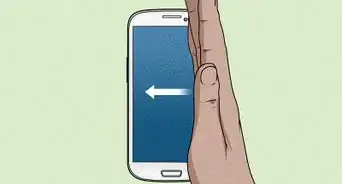
4Swipe left. Doing so will bring you to a list of apps stored on your SD card where you can manage them from there.
-
5Tap the app you want to manage.
-
6Tap on Move to SD card. Doing so will transfer the app to external storage.
- You will need a microSD card inserted in your device for this to work.
-
7Tap on Move to Device Storage. This will move the app back to your internal storage.
-
8Tap Uninstall. Doing so will completely remove the app from your device and you’ll have managed your applications by accessing the SD card.Advertisement


Community Q&A
-
QuestionHow can I see what is on my SD card and manage it by moving it to my computer?
 Community AnswerConnect your phone via USB charging cable to your computer and use your file manager. Alternately, you could get a USB SD card adapter, put the card in that, and insert into your computer.
-Step-21.webp)











About This Article

wikiHow Staff
wikiHow Staff Writer
This article was co-authored by wikiHow Staff. Our trained team of editors and researchers validate articles for accuracy and comprehensiveness. wikiHow's Content Management Team carefully monitors the work from our editorial staff to ensure that each article is backed by trusted research and meets our high quality standards. This article has been viewed 36,124 times.
How helpful is this?
Co-authors: 8
Updated: March 4, 2021
Views: 36,124
Categories: Samsung Galaxy
Advertisement
-Step-21.webp)











































