X
wikiHow is a “wiki,” similar to Wikipedia, which means that many of our articles are co-written by multiple authors. To create this article, volunteer authors worked to edit and improve it over time.
The wikiHow Tech Team also followed the article's instructions and verified that they work.
This article has been viewed 56,221 times.
Learn more...
Need to zoom in on part of your Word document to get a closer look? We'll show you how to use the Zoom slider and touch gestures in Microsoft Word to zoom in and out on any document.
Steps
-
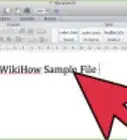
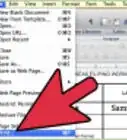
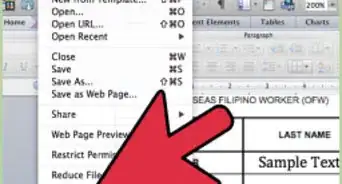
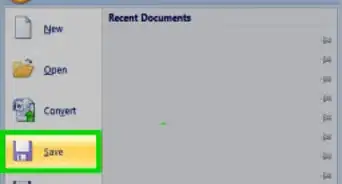
1Open your project in Word. You can click File > Open within Word or you can right-click the document file and select Open With > Word.
-
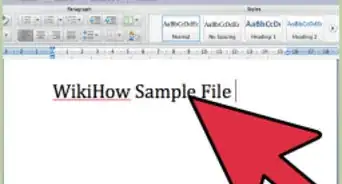
2Drag the zoom slider left or right. It's in the lower right corner of the Word window. Slide it right to zoom in and slide it left to zoom out. The numbers to the right of the slider represent your zoomed-in or zoomed-out amount.
- You can also click the + or - buttons next to the slider to change the zoom level by increments.[1]
- Return this slider to 100% to return to normal view.
-
3Click the View tab to see more zoom options. Click Zoom to get a dialog box and you can set the zoom to a certain percentage (the percentage shown depends on your screen size and the size of your Word window).
- You can also press and hold Ctrl and scroll on your mouse wheel to zoom in and out.
- If you have a touchpad, you can pinch your fingers on the touchpad to zoom. Separate your fingers on the touchpad to zoom out.[2]













References
About This Article
Article SummaryX
1. Open your project in Word.
2. Drag the zoom slider left or right.
3. Click the Zoom tab to see more zoom options.
Did this summary help you?