This article was co-authored by wikiHow staff writer, Janice Tieperman. Janice is a professional and creative writer who has worked at wikiHow since 2019. With both a B.A. and M.A. in English from East Stroudsburg University, she has a passion for writing a wide variety of content for anyone and everyone. In her free time, you can find her working on a new crochet pattern, listening to true crime podcasts, or tackling a new creative writing project.
There are 11 references cited in this article, which can be found at the bottom of the page.
Learn more...
Ugh! You’re just about to make a call, but your phone keeps bombarding you with a pesky “emergency calls only” message. Try not to worry—as frustrating as this issue is, it’s more common than you think, especially for Android phones. We’re here to walk you through a variety of possible issues and solutions, so you can get back to business.
Steps
Method 1
Method 1 of 11:Your SIM card isn’t inserted properly.
-
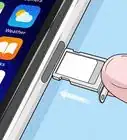
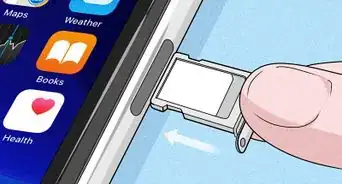
1Remove and reinsert your SIM card correctly into your phone. The SIM card is pretty much the backbone of your phone, and it needs to be installed correctly for your phone to work properly. [1] You can typically find your SIM card in either a side tray or near the battery pack on the back of your phone. Here are some tips on how to remove and replace your card:[2]
- Tray: Stick the pointed end of a paper clip or earring post into the small hole along the side of your phone’s battery tray. Then, slide out the tray and take out the SIM card. Place the SIM card back in its slot, making sure that the notched edge of the card lines up correctly with the tray’s outline.[3]
- Battery Pack: Pull off the back cover of your phone and remove the battery to find the SIM card slot. Slide out the SIM card from its compartment. Then, double-check the reference image etched on or near the SIM card slot to make sure your card is lined up properly.[4]

Method 2
Method 2 of 11:Your SIM card is broken.
-
1Call your phone carrier for a brand new SIM card. Remove the old SIM and insert the new one in its place. Check if your phone still shows the “emergency calls only” warning—if so, drop your phone off at a repair shop. If a new SIM card isn’t doing the trick, there might be deeper hardware damage at play.[5]
- Your phone carrier should send you a new SIM card for free.[6]

Method 3
Method 3 of 11:Your phone service is interrupted.
-
1Check with your carrier to see if there’s a service outage. Service outages can mess with your phone’s connectivity, making it impossible to place a call.[7] Visit your wireless carrier’s website to see if there are any service issues happening that could be messing with your phone.
- You can also check a third-party site like DownDetector to see if your wireless carrier is up and running.

Method 4
Method 4 of 11:You need to pick your carrier manually.
-
1Turn off automatic network selection in your phone settings. Your phone might not be connecting to the best possible network on its own, which could be causing your connectivity problems. Open “Settings” and select “Connections” and “Mobile networks.” Tap on the “Network operators” option at the end of the menu and switch off the toggle for “Select automatically”. A short list of mobile carriers should pop up—select whichever one has the best, most consistent service.[8]
- This might involve a bit of trial and error. Test out each carrier and see if any of them get rid of the “emergency calls only” notice.

Method 5
Method 5 of 11:You need to switch your network mode.
-
1Switch to a lower speed in “network mode” in your phone settings. Pull up “Settings” and hit the “Connections” button. Then, tap on the “Mobile networks” and “Network mode” options. Switch from the “LTE/3G/2G” auto-connect option to “2G only”. This network reset might switch off the “emergency calls only” warning on your screen.[9]
- Changing your network mode switches up your phone’s data preferences, which may get rid of the “emergency calls only” message.

Method 6
Method 6 of 11:You need to restart your network.
-
1Put your phone in Aircraft Mode for 5 seconds. Pull down the notification menu from the top of the screen and look for the airplane icon. Tap on this, which should disconnect your phone from both Wi-Fi networks and your mobile network. Stay in Aircraft Mode for at least 5 seconds before hitting the icon again. Hopefully, this soft reset will get rid of the “emergency calls only” warning on your screen.[10]
- You can also access Aircraft Mode in “Settings.” Select “Connections” from the main menu. In between the “Bluetooth” and “Mobile networks” buttons, you should see a “Flight mode” option—toggle this on to reset your phone’s network connection.
- On some phones, this might be called “Flight Mode”.[11]

Method 7
Method 7 of 11:You’re in a crowded area.
-
1Move to a less crowded area and try using your phone there. Cell service isn’t very consistent when lots of people are using the same cell towers at once. If the “emergency calls only” message pops up randomly, you might need to move to a less congested area.[12]
- For instance, your phone might not work if you’re driving through a really congested part of the city.

Method 8
Method 8 of 11:Your phone antennas are broken.
-
1Buy a new backplate from the company that made your phone. Check your phone’s current backplate and see if it’s tight and secure along the back of your phone. A poorly fitting backplate can be a sign of antenna damage, which might be triggering the “emergency calls only” message. Call up the phone manufacturer or check their website to pick up a new backplate for your phone model.[13]

Method 9
Method 9 of 11:You need to power your phone down and turn it back on.
-
1Switch off your phone without rebooting it. Press the power button on your phone to bring up the “Power off” button. Then, tap the button and hit “OK” to completely power down your phone.[14] Once your phone is off, pull off your phone’s backing and take out the battery for a moment. Wait a couple of seconds before reinserting the battery and switching your phone on.[15]

Method 10
Method 10 of 11:You need to factory reset your phone.
-
1Perform a factory reset in your phone’s settings. If nothing else seems to remove the “emergency calls only” message, a factory reset might be your last resort.[16] Pull up “Settings,” then tap “System”, “Advanced”, and “Reset options.” Select the “Erase all data (factory reset)” option, along with “Erase all data.” Then, punch in your phone’s PIN number and tap on “Erase all data” one more time. Hopefully, this reset should take care of the problem![17]
- Be sure to back up your phone before factory resetting it—this way, you won’t have to set up your new phone from scratch.

Method 11
Method 11 of 11:Your phone bill is overdue.
-
1Log into your wireless carrier account and check that you’re caught up with your bills. Check your previous phone payments, and make sure that you’re squared away with your carrier. Your phone company might’ve pulled the plug on your service if you were too far behind on your bills.[18]
- Make sure that your payment info is up-to-date on your account, too.




References
- ↑ https://www.lg.com/ca_en/support/product-help/CT20098088-20150230861960
- ↑ https://www.youtube.com/watch?v=NpFxT6zOE44&t=0m43s
- ↑ https://www.youtube.com/watch?v=NpFxT6zOE44&t=1m9s
- ↑ https://www.youtube.com/watch?v=2sMYPPtyPL8&t=2m54s
- ↑ https://thedroidguy.com/samsung-galaxy-s7-edge-emergency-calls-error-1080639
- ↑ https://www.lg.com/ca_en/support/product-help/CT20098088-20150230861960
- ↑ https://www.lg.com/ca_en/support/product-help/CT20098088-20150230861960
- ↑ https://techcult.com/fix-android-emergency-calls-only-and-no-service-issue/#
- ↑ https://techcult.com/fix-android-emergency-calls-only-and-no-service-issue/#
- ↑ https://www.techjunkie.com/emergency-calls-only-no-network-problem-on-galaxy-s9-and-galaxy-s9-plus/
- ↑ https://techcult.com/fix-android-emergency-calls-only-and-no-service-issue/#Method_5_Select_the_Carrier_Network_Manually
- ↑ https://smartmobilephonesolutions.com/content/how-to-fix-a-cell-phone-that-says-emergency-calls-only/
- ↑ https://smartmobilephonesolutions.com/content/how-to-fix-a-cell-phone-that-says-emergency-calls-only/
- ↑ https://www.lg.com/us/mobile-phones/VS985/Userguide/029.html
- ↑ https://www.lg.com/ca_en/support/product-help/CT20098088-20150230861960
- ↑ https://www.lg.com/ca_en/support/product-help/CT20098088-20150230861960
- ↑ https://www.androidauthority.com/factory-reset-android-1119937/
- ↑ https://www.lg.com/ca_en/support/product-help/CT20098088-20150230861960
About This Article