This article was co-authored by wikiHow staff writer, Hunter Rising. Hunter Rising is a wikiHow Staff Writer based in Los Angeles. He has more than three years of experience writing for and working with wikiHow. Hunter holds a BFA in Entertainment Design from the University of Wisconsin - Stout and a Minor in English Writing.
There are 7 references cited in this article, which can be found at the bottom of the page.
Learn more...
If you’re looking to escape into virtual reality, an Oculus Rift can be a great investment. Before you buy an expensive headset, you’ll need a computer that can run all of the experiences. Even though Oculus requires some specific specs, you can usually get by with the minimum requirements. We’ll walk you through the bare essentials that you need and offer some upgraded recommendations to help you run all of your VR games smoothly!
Steps
Method 1
Method 1 of 8:Operating system
-
1Oculus Rift only runs on Windows 10. Unfortunately, you can’t use an Oculus Rift if you have a Mac or an earlier version of Windows. Check your Windows version on your computer to see if you’re currently running Windows 10. If not, you’ll need to upgrade before your Oculus Rift works properly.[1]
- As of 1/14/2020, Oculus has ended support for Windows 7 and 8, so your headset will not work until you upgrade.

Method 2
Method 2 of 8:Processor
-
1Check that you have an Intel i3-6100, AMD Ryzen 3 1200, FX4350 or greater. Every program you use on your computer runs through the processor. Since virtual reality takes a lot of processing power, you need a chip that can handle the experiences. Go into your Settings, click on “System,” and then click “About” to find the CPU. Make sure it’s at least one of the 3 listed here.[2]
- Oculus also recommends using an Intel i5-4590, AMD Ryzen 5 1500X, or greater if you want even better performance.
- These recommendations are the same for both the Oculus Rift and the Oculus Rift S.

Method 3
Method 3 of 8:Graphics card
-
1Use an NVIDIA GTX 1050 Ti or AMD Radeon RX 470 for the bare minimum. Graphics cards are important since they render all of the images for your Oculus games and experiences. VR is pretty intense, so you’ll need a pretty good graphics card to run it without freezing or glitching. Click into the System Information menu on your computer and check that your graphics card works with your headset.[3]
- For even better graphics and gameplay, use an NVIDIA GTX 1060, AMD Radeon RX 480, or greater graphics card.
- You can find a list of all of the graphics cards that work properly here: https://support.oculus.com/articles/headsets-and-accessories/oculus-rift-s/index-rift-s.
- If you don’t have the right graphics card, you can upgrade them without replacing your entire computer, but they can be pretty expensive.

Method 4
Method 4 of 8:Memory
-
1Make sure you have at least 8 GB of RAM on your computer. Every program you run on your computer takes up RAM to help store data. If you’re low on RAM, then your VR games might slow down or freeze so you can’t use them. Open your system information and check how much RAM your computer has. If you have 8 GB or more, then you’ll be fine running an Oculus Rift. If you have any less, then you’ll need to upgrade and install more RAM.[4]
- You can buy more RAM without replacing your entire computer, but it can be pricey.
- In general, the more RAM you have, the less likely you are to encounter a problem.

Method 5
Method 5 of 8:USB ports
-
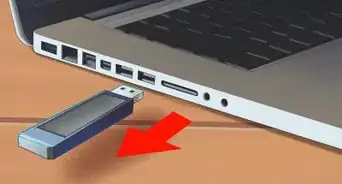
1You’ll need at least 1 USB 3.0 port and 2 USB 2.0 ports. While the ports may look similar, USB 3.0 ports transfer data much faster than a standard 2.0 port, which gives your Oculus headset a faster and smoother performance. Check the rectangular USB ports on your computer to make sure you have one that has a blue connector and 2 that have a standard gray connector. If you don’t have these ports, then an Oculus won’t run smoothly when you plug it in.[5]
- Ideally, you should use 3 USB 3.0 plugs and have at least 1 USB 2.0 port.
- For an Oculus Rift S, you only need 1 USB 3.0 port, but it will not work with a USB 2.0 port.
- You may be able to install new ports on your computer or use a USB adaptor if you don’t currently have enough on your machine.

Method 6
Method 6 of 8:Video output
-
1Your computer needs either an HDMI 1.3 or DisplayPort output. The standard Oculus Rift connects to your headset with a regular HDMI cord, while the Oculus Rift S connects through a DisplayPort output. Look at the ports on your computer and make sure you have either of these. You could also use a Mini DisplayPort output since the Oculus Rift S comes with an adapter.[6]
- You cannot use a third-party adapter to connect to a Mini DisplayPort or USB-C connection.

Method 7
Method 7 of 8:Oculus app
-
1Download the free Oculus software online so you can run your VR set. Whenever you want to use your VR system, you have to run it through the Oculus software on your computer. Visit the Oculus site and download the software to your machine. Once you install it completely, you’ll have to log in to an Oculus account so you can buy and download games.[7]
- You can download the Oculus app here: https://www.oculus.com/setup/.

Method 8
Method 8 of 8:Play area
-
1Clear out a 3 ft × 3 ft (0.91 m × 0.91 m) space so you don’t bump anything. Since you’ll be wearing a headset while you’re in VR, you won’t be able to see the room where you’re playing. Clean up the area around your computer so you have an empty and open area around you. That way, you can move around in your VR experience without knocking anything over in the real world.[8]
- If you have an Oculus Rift S, then aim to have a 6 1⁄2 ft × 6 1⁄2 ft (2.0 m × 2.0 m) area so you can walk around and swing your arms around while you’re playing.

Warnings










References
- ↑ https://support.oculus.com/articles/getting-started/getting-started-with-rift/rift-s-minimum-requirements/
- ↑ https://support.oculus.com/articles/getting-started/getting-started-with-rift-s/index-rift-s-getting-started/
- ↑ https://support.oculus.com/articles/getting-started/getting-started-with-rift/rift-s-minimum-requirements/
- ↑ https://www.oculus.com/blog/performance-pcs-picking-the-right-laptop-or-tower-to-run-your-rift/
- ↑ https://support.oculus.com/articles/getting-started/getting-started-with-rift-s/index-rift-s-getting-started/
- ↑ https://support.oculus.com/articles/getting-started/getting-started-with-rift/rift-s-minimum-requirements/
- ↑ https://youtu.be/N4Xd_fglOaA?t=54
- ↑ https://www.oculus.com/blog/get-ready-for-rift-s/
- ↑ https://support.oculus.com/articles/headsets-and-accessories/oculus-rift-s/index-rift-s
About This Article