This article was written by Darlene Antonelli, MA. Darlene Antonelli is a Technology Writer and Editor for wikiHow. Darlene has experience teaching college courses, writing technology-related articles, and working hands-on in the technology field. She earned an MA in Writing from Rowan University in 2012 and wrote her thesis on online communities and the personalities curated in such communities.
This article has been viewed 1,498 times.
This wikiHow will show you how to view purchases on iTunes with your Windows computer or Mac, with your iPhone, iPad, or iPod touch, or on the web.
Steps
Method 1
Method 1 of 3:Using your iPhone or iPad
-
1
-
2Tap on your name. You should see your name at the top of the menu.
- If you don't see your name, you need to login to your Apple ID by tapping on Sign into your iPhone and follow the on-screen prompts.
Advertisement -
3Tap iTunes & App Store. You'll find this in the second grouping of options with iCloud.
-
4Tap your Apple ID. You'll see this at the top of your screen in blue text.
-
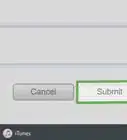
5Tap View Apple ID. You might be asked to enter your Apple ID password here to confirm it's you doing this.
-
6Tap Purchase History. You might have to swipe the screen up to see this.
- You can change the range of the purchase history results by tapping on Last 90 days at the top of your screen.
- Tap the arrow next to the purchase to see the details of the bill.[1]
Advertisement


Method 2
Method 2 of 3:Using a Computer
-
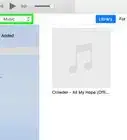
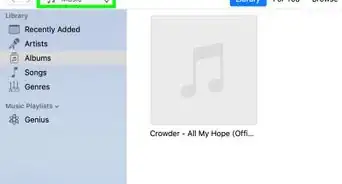
1Open iTunes on your computer. If you’re using Windows, you’ll find this program in your Start Menu or, if you’re using a Mac, in your Applications folder.[2]
- If you don't have iTunes on your computer, you can try another method shown here, or install iTunes from https://www.apple.com/itunes/download/ for either a Windows or Mac.
-
2Click the Account tab. You'll see this along the top of the program window or the top of your screen.
-
3Click View My Account. You'll need to sign in with your Apple ID account.
-
4Click See All next to "Purchase History"." You might have to scroll down to see the purchase history section.
- You can change the range of the purchase history results by clicking on Last 90 days at the top of your screen.
- Click the arrow next to the purchase to see the details of the bill.
Advertisement


Method 3
Method 3 of 3:Using a Browser
-
1Go to https://reportaproblem.apple.com in a web browser. You can use this method if you can't get the other methods to work. You can also use this method on either a computer or a mobile device.
-
2Login with your Apple ID and password. This needs to be the same Apple ID that makes purchases from iTunes or the App Store.
-
3Click the Purchases or Receipts tab. You'll either see your items listed individually or by receipts, depending on which tab you selected.
- You can change the range of the purchase history results by clicking on Last 90 days at the top of your screen.[3]
Advertisement





References
About This Article

1. Open Settings.
2. Tap your name.
3. Tap iTunes & App Store.
4. Tap your Apple ID.
5. Tap View Apple ID.
6. Tap Purchase History.