X
This article was co-authored by wikiHow Staff. Our trained team of editors and researchers validate articles for accuracy and comprehensiveness. wikiHow's Content Management Team carefully monitors the work from our editorial staff to ensure that each article is backed by trusted research and meets our high quality standards.
This article has been viewed 25,820 times.
Learn more...
This wikiHow teaches you how to add a filter to your Snaps on Snapchat that makes them look like famous paintings.
Steps
-
1Open the Snapchat app. This is the white ghost icon on a yellow background.
- If you aren't logged in automatically, type your username and password into the fields provided and hit Log In.
-
2Take a snap. Tap the large button at the bottom of the screen. This will take a snap of whatever is in view of the camera.Advertisement
-
3Tap ⇩. It's located in the bottom left corner of the screen. This will save your snap to Memories.
-
4Tap X. It's located in the top left corner of the screen and will exit the picture screen when tapped.
-
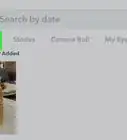
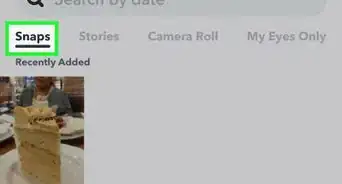
5Tap the smallest circle at the bottom of the screen. This will open the Memories screen.
-
6Tap your picture.
-
7Tap Edit & Send. It's located at the bottom of the screen.
-
8Tap the small pencil button. It's located at the bottom of the screen.
-
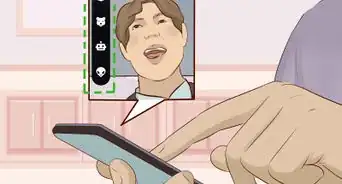
9Tap the small paintbrush button. It's located at the top of the screen.
-
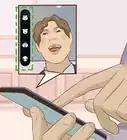
10Swipe through and select your desired paintbrush filter. These filters will make your snap look like a painting.
- Tap the white arrow at the bottom of the page in the blue circle. Tap a friend's name to send them the snap or tap My Story to add it to your story for all your friends to see.
Advertisement



About This Article

wikiHow Staff
wikiHow Staff Writer
This article was co-authored by wikiHow Staff. Our trained team of editors and researchers validate articles for accuracy and comprehensiveness. wikiHow's Content Management Team carefully monitors the work from our editorial staff to ensure that each article is backed by trusted research and meets our high quality standards. This article has been viewed 25,820 times.
How helpful is this?
Co-authors: 4
Updated: September 6, 2019
Views: 25,820
Categories: Snapchat
Advertisement