X
This article was written by Nicole Levine, MFA. Nicole Levine is a Technology Writer and Editor for wikiHow. She has more than 20 years of experience creating technical documentation and leading support teams at major web hosting and software companies. Nicole also holds an MFA in Creative Writing from Portland State University and teaches composition, fiction-writing, and zine-making at various institutions.
This article has been viewed 1,676 times.
After installing Marsbot by Foursquare, ask it for restaurant recommendations by texting “find [type of establishment]” to 76917. As the app learns your preferences over time, Marsbot will text you relevant suggestions for great places to eat or drink nearby.
Steps
Part 1
Part 1 of 3:Installing Marsbot
Part 1
-
1Make sure you can use Marsbot. To use Marsbot, you must meet the following criteria:[1]
- Be in San Francisco or New York City
- Have a United States phone number
- Have a GPS-enabled Android or iOS device
-
2Open the App Store or Play Store.
-
3Search for marsbot.
-
4Tap Marsbot in the search results. The developer is listed as Foursquare.
-
5Tap GET or INSTALL. The app will download and install on your device.
-
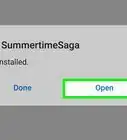
6Tap OPEN. This will launch Marsbot for the first time.
-
7Tap Get Started.
-
8Follow the on-screen instructions to set up Marsbot.[2]
- You’ll be asked to enter your phone number and verify an SMS code.
- You’ll also be asked to give permission for Marsbot to use your GPS location to make accurate recommendations.


Part 2
Part 2 of 3:Setting Your Preferences
Part 2
-
1Open Marsbot. Marsbot makes recommendations by learning your preferences over time. However, you can get a head start by specifying things you like.[3]
-
2Tap the star icon. It’s at the top of the screen to the left of the Settings gear.
-
3Tap the “Vegetarian” switch. If you’re a vegetarian, you can tap this switch so that Marsbot won’t wrongly direct you to a steakhouse.
-
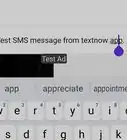
4Tap +Add More. Your SMS app will appear, open to a text conversation with Marsbot. You’ll see “Add tastes:” in the text box. Leave that text there.
-
5Type a cuisine, dish, drink, or environment you enjoy. Type it after “Add tastes:”
- Cuisine ideas: Thai, Japanese, Burmese, Vegan, Paleo
- Specific dish or drink: Pizza, Hot Toddies, Pho, Coffee
- Environments: Dive Bars, Family-friendly, Patio
-
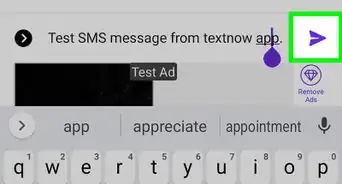
6Tap Send. This button looks different depending on your device, but it’s the button you use to send a text.
- Repeat this process to add more preferences.
-
7Return to Marsbot. In a few moments, you’ll see your new preference under “Things You Like.”
- To remove a preference, tap its corresponding x.[4]


Part 3
Part 3 of 3:Getting Recommendations
Part 3
-
1Open the text message with Marsbot. Next time you’re hungry in San Francisco or New York City, send Marsbot a text to receive a recommendation in response.
- If you deleted the text, create a new text to 76917.
-
2Send a text that says find [type of food]. Marsbot will respond with a nearby restaurant recommendation based on your GPS location.[5]
- For example, if you want to find a restaurant that sells Peruvian chicken, send find Peruvian chicken.
-
3Send a message that says another. This prompts Marsbot to send a recommendation for another local spot you may enjoy.
-
4Bring your phone to bars and restaurants. The longer you use Marsbot, the better it gets at making recommendations. As you dine or drink in the city, you’ll receive texts with ideas for what to do next.
- For example, while you’re at a sushi restaurant, you may receive a text from Marsbot recommending a dessert shop that serves mochi.
- Marsbot may send also send bar recommendations, like “After dining at El Farolito, I like to get drinks at The Phonebooth.”



References
- ↑ https://support.foursquare.com/hc/en-us/articles/217988268
- ↑ http://www.androidauthority.com/foursquares-marsbot-siri-like-assistant-723163/
- ↑ https://support.foursquare.com/hc/en-us/articles/217988268
- ↑ https://support.foursquare.com/hc/en-us/articles/217988268
- ↑ https://backchannel.com/marsbot-is-dreaming-of-you-f8d476c61f96#.cn8v55d96
- ↑ https://support.foursquare.com/hc/en-us/articles/217988268
About This Article

Nicole Levine, MFA
Tech Specialist
This article was written by Nicole Levine, MFA. Nicole Levine is a Technology Writer and Editor for wikiHow. She has more than 20 years of experience creating technical documentation and leading support teams at major web hosting and software companies. Nicole also holds an MFA in Creative Writing from Portland State University and teaches composition, fiction-writing, and zine-making at various institutions. This article has been viewed 1,676 times.
How helpful is this?
Co-authors: 10
Updated: May 25, 2021
Views: 1,676
Categories: Multi Platform Smartphone Applications