X
wikiHow is a “wiki,” similar to Wikipedia, which means that many of our articles are co-written by multiple authors. To create this article, volunteer authors worked to edit and improve it over time.
This article has been viewed 19,094 times.
Learn more...
Once you found that experimental browser, you might be asking yourself "great... now what can you do with it?" If you are in that same boat, this article will be there to help you. This article will explain how you can use it effectively.
Steps
-
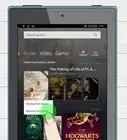
1Access the browser on your Kindle device. The steps for your device are the same, though the device name on this article is different.
-
2Move the mouse cursor around the screen using the 5-way controller keys. Get the feel of what it's like and how to select buttons and stuff.
-
3Look on the screen for the back and forward buttons. They will be located at the top left corner of the device's screen. Wait for the appropriate button to be highlighted (using the 5-way controller).
-
4Recognize the placement of the Reload button. It is located to the right of the address in the URL bar at the top of the screen. This button is your "Refresh" button.
- Realize that there is no way to "force-refresh" a page on a browser of this type. Reset the device (hold the power switch in) to force-refresh the device.
-
5Realize that there is no "Stop" button. The stop button will only display in the same place where "Reload" is located during the time the page is loading.
-
6Navigate to the URL location of the page you'd like to view. The URL box is located at the top of the Back/Forward buttons.
-
7Recognize the formats that best load on the device. Although some sites load with their respective mobile sites (when available), some sites that have mobile sites aren't triggered on the device. Other sites that don't have mobile websites will only open up to their respective full sites( however, the page will ask you to zoom in on a section of the page, to select the links/buttons).
-
8Realize that there are several other common commands listed, when you press the "Menu" button in this browser. These include Bookmarking (Bookmarks and Bookmark This Page options) exists, a way to view History exists, along with a way to view Browser Settings exists too. Use the 5-way controller and Select button at it's center to select the appropriate action you want to use.
-
9Find the Quick "Enter URL" button which will help you arrive at the address bar for quicker entry of the URL without a lot of navigation. This button will be disabled if you're at the farthest known page in your browser history (such as when you've gone back a page from a farther off other page).
-Browser-on-a-Kindle-Keyboard-Step-1.jpg)
-Browser-on-a-Kindle-Keyboard-Step-2.jpg)
-Browser-on-a-Kindle-Keyboard-Step-3.jpg)
-Browser-on-a-Kindle-Keyboard-Step-4.jpg)
-Browser-on-a-Kindle-Keyboard-Step-5.jpg)
-Browser-on-a-Kindle-Keyboard-Step-6.jpg)
-Browser-on-a-Kindle-Keyboard-Step-7.jpg)
-Browser-on-a-Kindle-Keyboard-Step-8.jpg)
-Browser-on-a-Kindle-Keyboard-Step-9.jpg)
Community Q&A
-
QuestionI can't find the experimental browser on my Kindle Fire. What should I do?
 Community AnswerThere is no Experimental Browser on Fire. There is a Silk Browser which is the browser for Fire.
 -
QuestionThis assumes that one's Kindle has a keyboard. What about those that don't?
 Female Spinny BoiCommunity AnswerThis article is specifically about kindle keyboards, so I would suggest going to a different article to find what you need.
Warnings
- This browser is unable to open new tabs for pages that require additional new tabs or windows to open. Instead, it will come up with a message saying that this action cannot complete for this reason and will stop loading completely.Thanks!
- Realize that this browser has no way to view any form of video. This browser is a no-nonsense browser, with no form of multimedia available to be seen (with exception of images and links).Thanks!

References
- Kindle Users Guide:5th Edition beginning at location 1675