This article was co-authored by wikiHow Staff. Our trained team of editors and researchers validate articles for accuracy and comprehensiveness. wikiHow's Content Management Team carefully monitors the work from our editorial staff to ensure that each article is backed by trusted research and meets our high quality standards.
This article has been viewed 1,786 times.
Learn more...
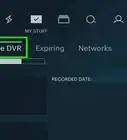
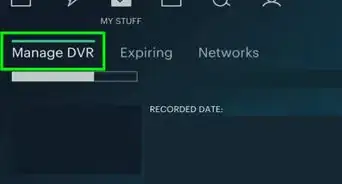
This wikiHow shows you how to access the Cloud DVR feature in the Hulu app with an Android device. Accessing this feature requires a Hulu plan that includes the Live TV add-on, so make sure you have that subscription included in your account plan before proceeding. Once you have access to Live TV on Hulu, any show that you add to "My Stuff" will automatically get recorded.
Steps
-
1Open the Hulu app.
-
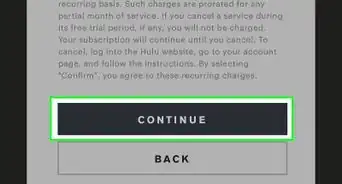
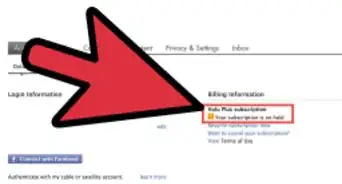
2Sign up for a Live TV subscription. If your account doesn’t have the Live TV add-on already included in your plan, then you’ll need to make sure it’s added in order to access the Cloud DVR.[1]
- To do this, tap the Account tab, select Manage under the Your Subscription tab, and select Add This next to Live TV in the list of add-ons.
Advertisement -
3
-
4Navigate to the show’s details page. Tap on the name of the show in the search results.
-
5Tap the Add to My Stuff button. This has a plus sign (+) next to it and will add that show or movie to the My Stuff page associated with your account.
- Adding a show to the My Stuff page will set it up so the show is automatically recorded whenever there’s a new episode live.
- If you don’t have a Live TV subscription, shows added to My Stuff won’t automatically be recorded by the Cloud DVR.
Advertisement





About This Article

1. Open the Hulu app.
2. Select a show to record.
3. Navigate to the show’s details page.
4. Tap the Add to My Stuff button.