X
This article was written by Nicole Levine, MFA. Nicole Levine is a Technology Writer and Editor for wikiHow. She has more than 20 years of experience creating technical documentation and leading support teams at major web hosting and software companies. Nicole also holds an MFA in Creative Writing from Portland State University and teaches composition, fiction-writing, and zine-making at various institutions.
This article has been viewed 4,954 times.
This wikiHow teaches you how to access Waze on an iPhone or iPad through CarPlay.
Steps
Part 1
Part 1 of 2:Setting up Waze
Part 1
-
1Install Waze on your iPhone or iPad. You don’t have to do anything special to get Waze onto CarPlay—just install it the iPhone or iPad you use to connect to CarPlay.[1] Waze is available for free from the App Store.
- If you haven’t set up CarPlay on your iPhone or iPad, see this wikiHow to do so now.
-
2Move the Waze icon to an easy-to-find location in CarPlay. This is optional, but will help you access Waze quickly when you need it most:
- Open your iPhone’s Settings.
- Tap General.
- Scroll down and tap CarPlay.
- Drag Waze to a spot near the top of the list.
Advertisement -
3Connect your iPhone or iPad to your car with CarPlay. Use USB or Bluetooth as necessary, then wait for the icons to appear on the car’s display. Waze will now be one of those icons.[2]
-
4Tap Waze on the car’s screen. It’s the blue icon with a white, smiling, upside-down chat bubble inside.
-
5Set favorites and frequently-used locations in Waze. You’ll want to do this on your iPhone or iPad before getting on the road. Saving the addresses you drive to most frequently makes it easy to select those locations when using CarPlay. Here’s how to add a favorite:[3]
- Open Waze on your iPhone or iPad.
- Tap Home or Work to set one of those options, or + Add new favorite to enter something else.
- Start typing the address.
- Tap the address in the search results.
- Tap Set home/work and go or Done.
Advertisement


Part 2
Part 2 of 2:Using Waze
Part 2
-
1Tap Waze on the car’s screen. It’s the blue icon with a white, smiling, upside-down chat bubble inside. Waze will now appear on the car’s screen.
-
2Navigate to a destination. Here are some ways to enter a destination address in Waze for CarPlay:[4]
- To manually enter an address, tap the magnifying glass icon at the top-left corner, tap the keyboard at the top of the screen, enter the location, and then tap Search.
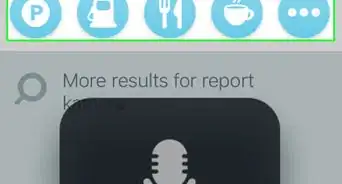
- To speak the location aloud, tap the magnifying glass at the top-left corner, tap the microphone, say the address or landmark, and then tap Search.
- To chose a saved location, tap Home, Work, or the star icon to view additional favorites.[5]
-
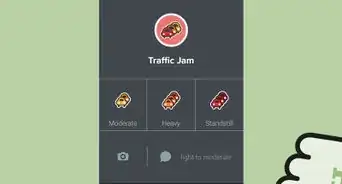
3Report accidents or hazards to other Waze users. Tap the pushpin at the bottom-right corner of the map, then tap one of the incident types to report issues on your route.
-
4End navigation. If you want to stop Waze’s directions before arriving at the location, tap the ETA bar, and then tap Stop.[6]Advertisement







References
- ↑ https://appleinsider.com/articles/18/09/28/hands-on-use-your-iphone-and-apple-carplay-to-access-waze-while-driving
- ↑ http://www.carplaylife.com/how-to/how-to-enable-wireless-apple-carplay/
- ↑ https://support.google.com/waze/answer/6282243?hl=en&ref_topic=6262561
- ↑ https://support.google.com/waze/answer/6262563?hl=en&ref_topic=7059900
- ↑ https://appleinsider.com/articles/18/09/28/hands-on-use-your-iphone-and-apple-carplay-to-access-waze-while-driving
- ↑ https://support.google.com/waze/answer/6286774?hl=en&ref_topic=7059900
About This Article

Nicole Levine, MFA
Tech Specialist
This article was written by Nicole Levine, MFA. Nicole Levine is a Technology Writer and Editor for wikiHow. She has more than 20 years of experience creating technical documentation and leading support teams at major web hosting and software companies. Nicole also holds an MFA in Creative Writing from Portland State University and teaches composition, fiction-writing, and zine-making at various institutions. This article has been viewed 4,954 times.
Co-authors: 4
Updated: February 5, 2020
Views: 4,954
Categories: Waze
Article SummaryX
1. Install Waze on the iPhone.
2. Go to Settings --> General --> Carplay on the iPhone.
3. Drag Waze to the beginning of the list.
4. Connect to the car via CarPlay.
5. Tap Waze.
Did this summary help you?
Advertisement