X
This article was written by Nicole Levine, MFA. Nicole Levine is a Technology Writer and Editor for wikiHow. She has more than 20 years of experience creating technical documentation and leading support teams at major web hosting and software companies. Nicole also holds an MFA in Creative Writing from Portland State University and teaches composition, fiction-writing, and zine-making at various institutions.
The wikiHow Tech Team also followed the article's instructions and verified that they work.
This article has been viewed 3,259 times.
This wikiHow teaches you how to view and share live streaming video in the Twitch app for Android.
Steps
Method 1
Method 1 of 2:Watching Twitch
Method 1
-
1Open Twitch on your Android. It’s the purple icon with a squared white chat bubble inside. You’ll usually find it in the app drawer and possibly the home screen.
- If you’re not already signed in to your Twitch account, sign in now.
- If you haven’t yet installed Twitch, download it now from the Play Store .
-
2Tap Live. It’s at the bottom-left corner of Twitch. This brings you to the Channels tab, where you’ll see a list of the channels you follow.[1]
- To add a channel, tap Add channel at the top-right corner of the list, and then search for a channel that interests you.
- To start watching a channel, tap the preview.
Advertisement -
3Tap the Friends tab to check on your friends. It’s at the top of the screen. Now you’ll see which of your friends are online.
- To add new friends, tap Add Friends, and then search for people to add.
-
4Tap the Whispers tab to send and receive messages. To send a message, tap Start a conversation.
-
5Tap Pulse. It’s at the bottom-center part of the screen. This is where you’ll find recommended content and trending streams.[2]
- You can make your own posts and recommendations in Pulse. Tap the “Post an update...” box to type your message, then tap Post.
-
6Tap Browse. It’s at the bottom-right corner of the screen. The games you follow are at the top of the screen, and other popular games are listed below.Advertisement


Method 2
Method 2 of 2:Streaming on Twitch
Method 2
-
1Open Twitch on your Android. It’s the purple icon with a squared white chat bubble inside. You’ll usually find it in the app drawer and possibly the home screen.
- If you’re not already signed in to your Twitch account, sign in now.
- If you haven’t yet installed Twitch, download it now from the Play Store .
-
2Tap Pulse. It’s at the bottom-center part of the screen. You can broadcast your very own Twitch video on this screen.
-
3Tap the video camera icon. It’s at the top-right corner of the screen.
-
4Enter a title for the stream. This is what other users will see when they find your stream in Twitch.
-
5Select a category. Choose the category that best represents what you’re doing in your stream:[3]
- IRL is a good choice for “real life” streams.
- Use Talk Shows for group discussions and interviews.
- Creative is best for talking about your artistic process.
- Use Music to share performances or talk about making music.
- Social eating is great for sharing a meal with others.
-
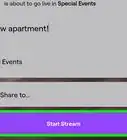
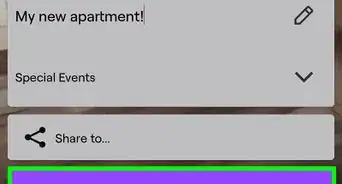
6Tap Start Stream. This starts your stream.
-
7Flip your Android to landscape mode. This means tilting it to the side so you’re holding it horizontally. The stream won’t start until you’ve done this.
-
8Tap End when you’re finished streaming.Advertisement



References
About This Article

Nicole Levine, MFA
Tech Specialist
This article was written by Nicole Levine, MFA. Nicole Levine is a Technology Writer and Editor for wikiHow. She has more than 20 years of experience creating technical documentation and leading support teams at major web hosting and software companies. Nicole also holds an MFA in Creative Writing from Portland State University and teaches composition, fiction-writing, and zine-making at various institutions. This article has been viewed 3,259 times.
How helpful is this?
Co-authors: 2
Updated: March 29, 2019
Views: 3,259
Categories: Twitch
Advertisement