X
This article was written by Nicole Levine, MFA. Nicole Levine is a Technology Writer and Editor for wikiHow. She has more than 20 years of experience creating technical documentation and leading support teams at major web hosting and software companies. Nicole also holds an MFA in Creative Writing from Portland State University and teaches composition, fiction-writing, and zine-making at various institutions.
The wikiHow Tech Team also followed the article's instructions and verified that they work.
This article has been viewed 12,356 times.
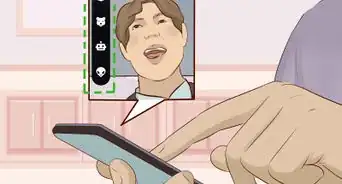
This wikiHow teaches you how to use Snapchat Memories, a feature that lets you to save your favorite Snaps and Stories to your personal collection.
Steps
Method 1
Method 1 of 7:Saving Snaps to Memories
Method 1
-
1Open Snapchat. You’ll need to use the Snapchat app for iOS or Android to access Memories.
-
2Take a new Snap. After capturing a photo or video, you can add filters, text, or any other editing features you wish.
-
3Tap the Save icon. It’s the downward-facing arrow at the bottom of the Snap.[1]
-
4Select a saving method.
- To save Snaps to Snapchat Memories without saving a copy to your phone, tap Memories. This is a good option for those without much space on their phone—as long as you have an internet connection, you can view your Memories.
- To save to both your phone and Snapchat Memories, tap Memories & Camera Roll.
- If you aren’t given a choice (you’ll only see it the first time you hit Save), the Snap saves to Snapchat Memories. To edit your preferences, see Changing How Memories are Saved.
-
5Send your Snap. Now that you’ve saved a Memory, you can send your snap as normal. Or, if you prefer not to send it, just tap the X at the top left corner of the screen.
-
6Swipe up on the Camera screen to view your Memories. If it’s your first time saving a Memory, you’ll only see one image listed. Otherwise, the most recent saved Memory appears at the top of the list.


Method 2
Method 2 of 7:Saving Stories to Memories
Method 2
-
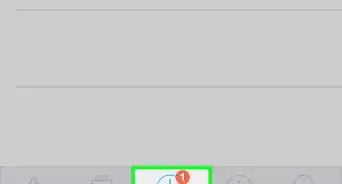
1Navigate to the Stories screen. You can get there by swiping left on the Camera screen, or by tapping the Stories icon.
- Use this method to save your entire Story to your Memories.
-
2Tap the download button next to “My Story.” This is the button with a downward-facing arrow. The story is now saved to your Memories.
- To save a single Snap from the story (instead of the entire story), tap My Story, then tap the download button at the bottom of the Snap.
-
3Make Snapchat automatically save your Stories. You can use this optional feature if you often save Stories to Memories. Here’s how:[2]
- Swipe down on the Camera screen to open your profile.
- Tap the gear at the top right corner of the screen.
- Scroll down and tap Memories.
- Slide the “Auto-Save Stories” switch to the On (green) position.


Method 3
Method 3 of 7:Editing Memories
Method 3
-
1Swipe up on the Camera screen to open Memories. You can edit any old photo or video in Memories with Snapchat’s editing tools. Once edited, you can send them as Snaps as if they were new.
-
2Tap Snaps. It’s at the top of the screen in the white bar. You can also get there by swiping left on the current screen.
-
3Select a Snap. If you’re having trouble finding the Snap you want to edit, tap the magnifying glass icon at the top of the screen and type a keyword (e.g. “cat,” “selfie”).
-
4Tap Edit & Send. It’s at the bottom of the screen.
-
5Tap the Edit icon. It’s a white outline of a pencil.
-
6Edit the Snap. Use any of the editing tools, including text and filters, to perfect your Snap before sending.
-
7Tap Done. It’s at the top left corner of the screen.
-
8Tap Save Changes. The edited version of your Snap has now replaced the original.
- If you want to send the Snap, tap the blue arrow icon and choose a recipient (or select “My Story”).


Method 4
Method 4 of 7:Changing How Memories are Saved
Method 4
-
1Swipe down on the Camera screen. Your profile will appear.
-
2Tap the gear icon. It’s at the top right corner of the screen.
-
3Scroll down and tap Memories. It’s under the “My Account” heading.
-
4Tap Save To….
-
5Choose where to save future Memories. Once you make your choice, Snaps and Stories will save to this location whenever you tap Save.
- Memories: When you save a snap, it will be saved to your Snapchat account (online) but not to your device. This is great if you don’t have a lot of space on your phone. You’ll only be able to view these Memories in the Snapchat app.
- Memories & Camera Roll: The snap will save to your device and your Snapchat account.
- Camera Roll Only: This skips the Memories feature entirely and just downloads the Snap to your phone.


Method 5
Method 5 of 7:Making Memories Private
Method 5
-
1Swipe up on the Camera screen. Your Memories will appear.
- Though nobody on Snapchat can view your memories unless you share them, anyone who has access to your phone may find them. If you have Memories you want to keep private, you can move them to a folder called “My Eyes Only.”
-
2Tap the Select icon. It’s the white checkmark inside a circle at the top right corner of the screen.
-
3Tap any photos you want to make private.
-
4Tap the padlock icon. It’s at the bottom of the screen.
-
5Create a 4-digit passcode. Follow the on-screen instructions to create a code to protect Snaps in My Eyes Only.
- It’s important that you don’t lose this code—Snapchat cannot recover lost codes or the Snaps they protect.[3]
-
6Tap Move. The Snap will no longer appear in the “Snaps” section of Memories.
- To view the contents of My Eyes Only, swipe left in Memories until you see the keypad. Enter the 4-digit pin to view your private memories.
-
7Make all future saved Memories private. This is optional, but if you want to protect all of your future saved Snaps and Stories with a passcode, here’s how:
- Swipe down on the Camera screen to open your profile.
- Tap the gear icon at the top right corner of the screen.
- Scroll down and tap Memories.
- Slide the “Save to My Eyes Only by Default” switch to the On (green) position.


Method 6
Method 6 of 7:Deleting Memories
Method 6
-
1Swipe up on the Camera screen. All Snaps and Stories saved to your Memories will appear.
-
2Tap the Select icon. It’s the checkmark at the top right corner of the screen.
-
3Tap Snaps or Stories to delete. When an item is selected, a red checkmark will appear over its thumbnail.
-
4Tap the Trash icon. It’s at the bottom left corner of the screen.
-
5Tap Delete. The photos will be removed from your Memories.[4]


Method 7
Method 7 of 7:Sharing Memories in Other Apps
Method 7
-
1Swipe up on the Camera screen to open Memories. Once you’ve saved a Snap or Story to Memories, you can share it in other apps—including other social media apps like Facebook and Instagram.
-
2Tap and hold a photo or video. You can lift your finger when a gray menu appears beneath the preview image.
-
3Tap Export Snap.
-
4Select an app. The options vary by device, but you can share your Snaps with any app that supports photos and/or videos. When the photo or video opens in the app, follow that app’s instructions to share, post, or edit your creation.[5]







References
- ↑ https://support.snapchat.com/en-US/article/save-to-memories
- ↑ https://support.snapchat.com/en-US/a/save-to-memories
- ↑ https://support.snapchat.com/en-US/a/my-eyes-only
- ↑ http://www.imore.com/how-use-snapchat-memories-iphone#rename
- ↑ https://support.snapchat.com/en-US/a/export-snap-memories
- ↑ https://support.snapchat.com/en-US/a/Snaps-snapstreak
About This Article

Nicole Levine, MFA
Tech Specialist
This article was written by Nicole Levine, MFA. Nicole Levine is a Technology Writer and Editor for wikiHow. She has more than 20 years of experience creating technical documentation and leading support teams at major web hosting and software companies. Nicole also holds an MFA in Creative Writing from Portland State University and teaches composition, fiction-writing, and zine-making at various institutions. This article has been viewed 12,356 times.
How helpful is this?
Co-authors: 3
Updated: May 25, 2021
Views: 12,356
Categories: Snapchat