This article was co-authored by wikiHow Staff. Our trained team of editors and researchers validate articles for accuracy and comprehensiveness. wikiHow's Content Management Team carefully monitors the work from our editorial staff to ensure that each article is backed by trusted research and meets our high quality standards.
This article has been viewed 10,483 times.
Learn more...
This wikiHow shows you how to connect a mouse and keyboard to your console. The Xbox One gaming console allows you to connect a mouse and keyboard as alternate input devices, though relatively few of the console's games and applications are compatible with such a setup.
Steps
-
1Connect a wired USB mouse to your Xbox One.
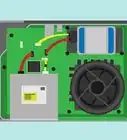
- If you have an Xbox One X or an Xbox One S, there are two USB ports on the back and one on the front.
- If you have an original Xbox One, there are two USB ports on the back and one on the left side.
-
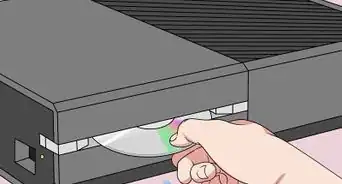
2Connect a USB cable from your keyboard to your Xbox One.
- The exact location of your keyboard's USB port will vary by manufacturer. Consult your keyboard's documentation.
Advertisement -
3Use the keyboard to navigate your Xbox's home page.
- Pressing Tab moves your cursor to the next selectable element.
- Pressing Shift + Tab moves your cursor to the previous selectable element.
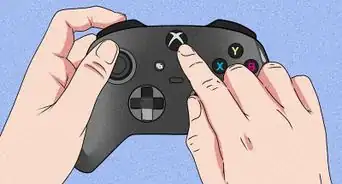
- Pressing the Windows key opens the Xbox guide.
- Pressing Space or Enter acts as the Select button.
- Pressing Esc or Backspace acts as the Back button.[1]
Advertisement



About This Article

1. Connect a wired USB mouse to the console.
2. Connect a USB cable from your keyboard to the Xbox One.
3. Press Tab to move the cursor to the next element.
4. Press Shift+Tab to move the cursor to the previous element.
5. Press Space to select the current element.