X
wikiHow is a “wiki,” similar to Wikipedia, which means that many of our articles are co-written by multiple authors. To create this article, 15 people, some anonymous, worked to edit and improve it over time.
This article has been viewed 14,458 times.
Learn more...
The Runescape tutorial will teach you some of the basic skills you need to know to get around the game. But there are a few additional features you will use again and again. Here are some tips to get you familiar with these controls.
Steps
Method 1
Method 1 of 6:Camera Controls
Method 1


Method 2
Method 2 of 6:Trading With Other Players
Method 2
-
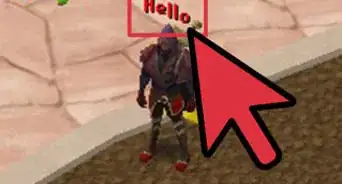
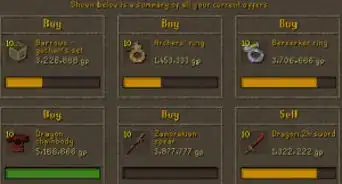
1Find a buyer or seller. If you have mined some coal and want to sell it, go to a busy area and yell, "Selling coal(insert amount you want to sell for here)(your user)!"
-
2Look for someone who wants to buy your coal. Right-click on their character. Select the "Trade" option. The other player will be informed of your request. They will click on your character and will also select the "Trade" option. Or they will look for you. If they request to trade than click on the words (user) wants to trade.
-
3Wait until a screen appears. The items on the left are what you are offering to trade. The items on the right are what the other player is offering. To add an item to your offer, click on it in the inventory box. To add multiples of the same object, right-click on the object. Click on the "Offer x" option to select the number you wish to offer. If you want to remove an item from the trade, just click on it in the Offer window and it will be removed.
-
4Decide if you are happy with the trade. Then press the green Accept button. If you change your mind, just hit the red Decline button.
-
5Wait until a final confirmation screen appears if you do accept. This gives you one last chance to check the trade you are about to complete. Make sure you are happy with what is being offered. Then press accept for the last time.
-
6Be careful when trading! There is no way to reverse a trade once it's completed. Some players may try to trick you by saying they'll give information in return for items, or promising to give the item right back to you. It's best not to trust offers like this.Advertisement


Method 3
Method 3 of 6:Shops
Method 3
-
1Talk to the shopkeeper of a store and choose the "Talk-to" option. Or right-click the mouse and choose the "Trade" option. That will take you straight to the Shop screen.
-
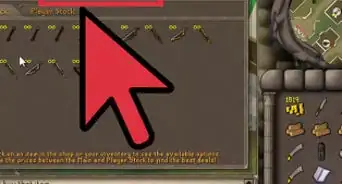
2See a shop screen that shows you all of the items you can buy in the current shop. Next to each item is a number that shows how many of the item is for sale. If there is no number next to the item, that means there is only one left, so buy it quickly if you want it!
-
3Check out your inventory, which will be displayed on the screen. Do you have enough room to buy what you want?
-
4Do you want to buy an item? Left-click on it to find out how many coins the shopkeeper wants. If you like the price, right-click and choose one of the "Buy" options. Sold!
-
5Do you want to sell an item? Click on the item in your inventory. You will see how much this shop is willing to pay, or even if the shop is willing to buy it at all. If you like the price offered, right-click on your item. Choose the number you want to sell with the "Sell" option. And shops now have the added detail where you can buy a lot of the item. it has an x now.Advertisement


Method 4
Method 4 of 6:Banks
Method 4
-
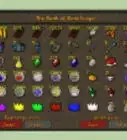
1Find and walk to the nearest bank. When you get there, right-click on any of the booths there. The bank screen will appear. Now you can choose to deposit and withdraw items.
-
2Right-click on the item in your inventory and choose the "Deposit" option. Select the number you wish to deposit. Any of the items you have deposited will be on the bank screen. If you have more than one of the item, the number will appear next to it.
-
3To withdraw an item from your inventory, you will have two choices. You can simply withdraw the item. If it is a trade able item that does not stack in your inventory, such as ore or food, you can withdraw it as a "Note." The advantage of this is that the item won't take up a lot of space in your inventory, but you can still sell it or trade it. For the most part, though, you can't use or wield an item that has been drawn as a note.
-
4Click on the Swap or the Insert buttons. There are there yo help organize your screen. If you choose Swap, just drag and drop an item on your Bank Screen on top of another item; they will swap positions. Choose Insert to drag and drop an item into a new place; the items will shuffle positions to make room for it.Advertisement


Method 5
Method 5 of 6:Friends
Method 5
-
1Click on the smiley face on your player interface to call up the friends list screen.
-
2Add a friend to your list. Click on the button marked Add Friends and type in the name of the player you want to add. You can also right-click on the name of a player in a Chat window and select the appropriate option.
-
3Remove a friend. Just click on the Del Friend button and type in the name of the player you want to remove.
-
4Do the exact opposite to add a friend to your ignore list: Click on the sad face button on your player interface to call up the Ignore list. To add a player, click on Add Name. Do this for people you hate, or if they are just plain annoying.Advertisement


Method 6
Method 6 of 6:Chat Options
Method 6
- "Public chat": This controls how much chat you can receive from other players. Choose from On, Friends Only, Off, or Hide.
- "Private Chat": This controls how players can contact you with private messages. If set to on, anyone can contact you, whether they are a friend or not. You can also choose Friends Only, and Off.
- "Clan Chat": This controls how much chat you can receive from other players while you are in a clan chat. You can choose from On, Friends Only, or Off
- "Trade/Complete": This controls whether other players can send you trade requests or challenge you to duels. The options are On, Friends Only, or Off.
Warnings
- Users may be very annoying.Thanks!
- When buying something, it may run out quickly.Thanks!
Advertisement


References
About This Article
Advertisement