X
wikiHow is a “wiki,” similar to Wikipedia, which means that many of our articles are co-written by multiple authors. To create this article, 16 people, some anonymous, worked to edit and improve it over time.
The wikiHow Tech Team also followed the article's instructions and verified that they work.
This article has been viewed 158,113 times.
Learn more...
Whether bookmarking favorite sites you visit frequently, or obscure and quirky sites you just want to know you can find again with ease, using (and removing) bookmarks within Google Chrome is simple. This tutorial explains exactly how to use bookmarks in the popular Google Chrome browser.
Steps
Method 1
Method 1 of 3:Adding Bookmarks
Method 1
-
1Open up the page you want to add a bookmark to.
-
2Find the star in the URL box.
-
3Click the star. A box should pop up.
-
4Choose a name for the bookmark. Leaving it blank will only show the icon for the site.
-
5Choose what folder to keep it in. Click the Folder field to select an alternative folder, if desired. Adding it to Bookmarks Bar will add it to a grey bar that you'll see at the New Tab page.
-
6Click Done when you're done. Don't worry––if you want to change the settings, you can do it later.


Method 2
Method 2 of 3:Editing Bookmarks
Method 2


Method 3
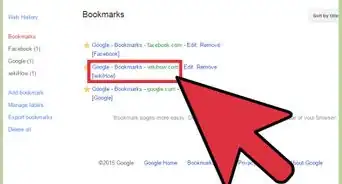
Method 3 of 3:Removing Bookmarks
Method 3


Community Q&A
-
QuestionHow do I alphabetize the entries?
 Community AnswerClick the 3-bar menu button at the top right of the browser window, place your cursor over Bookmarks, then click Bookmark manager. This is also bound by default to Ctrl+Shift+O. Here, on the left sidebar, click the folder you want to alphabetize. Then, click Organize and select Reorder by title.
 -
QuestionHow do I create sub-folders in Other Bookmarks in Chrome?
 Megm26Community AnswerYou will need to have something favorited in Other Bookmarks if you do not already. You will need to right-click "Other Bookmarks" and click "Add Folder..." From there, you will need to name your folder before you can start using it.
 -
QuestionHow do I make a tab?
 KennyCommunity AnswerThere are two easy ways to make a new tab. One way is to press the slanted rectangle on the top left of the window (the longer shape is a tab). Another way is holding "control" and pressing "t" for "tab."
 -
QuestionHow do I open a bookmarked page?
 Community AnswerYou click the link right under the URL. If that does not work then go to the folder (if you have one) and click in there. If all else fails then just look up the website; if it has a star on the right it is bookmarked, if not then you did not bookmark it.
 -
QuestionHow do I get the page that I bookmarked?Megm26Community AnswerJust click on the text for the bookmarked page. That will take you directly to your bookmark.
-
QuestionWhere would the list of all bookmarked pages on Chrome be found?
 Community AnswerAt the top of your screen, right underneath your tabs and the search bar.
 -
QuestionI am trying to sign into Google Books. When I click on "Sign In," one of my bookmarks "Rutgers sign in," keeps coming up. Should I delete the Rutgers sign in bookmark?Community AnswerIt is likely that you should. Bookmarks are just here to make accessing the pages easier. Erasing it because of something like that is a reasonable solution.