This article was written by Travis Boylls. Travis Boylls is a Technology Writer and Editor for wikiHow. Travis has experience writing technology-related articles, providing software customer service, and in graphic design. He specializes in Windows, macOS, Android, iOS, and Linux platforms. He studied graphic design at Pikes Peak Community College.
This article has been viewed 113,864 times.
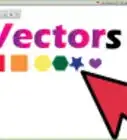
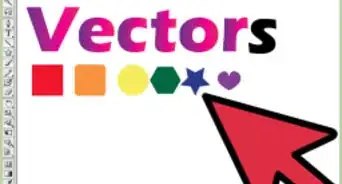
Adobe Illustrator's Live Trace tool is designed to change your raster image files (JPEG, PNG, GIF, BMP, etc) into vector-based images. Raster files are made up of pixel data and get distorted and blurry when enlarged. Vector images are made up of point data that determine shapes and colors. Vector images can be blown up to any size without losing quality. It's a good idea to have images that are used in a variety of formats (such as logos) in vector format. Cartoon images make good vector images too. This wikiHow article teaches you how to use Live Trace to convert raster images to vector images in Adobe Illustrator.
Steps
-
1Open or create a new Illustrator file. Adobe Illustrator has a yellow square icon that says "Ai" in the middle. Double-click the Adobe Illustrator icon to launch Adobe Illustrator. Then click Create New to create a new file or click Open to open an existing file. If you create a new file, select the size of the document you want to create and click Create. If you are opening an existing file, click Open and double-click the file you want to open.
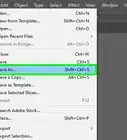
- You can open or create a new Illustrator file at any time by clicking File in the menu bar, followed by New or Open.
- You can also open any illustrator file by navigating to the file location in File Explorer on Windows or Finder on Mac and double-clicking the file.
-
2Place a raster image in your Illustrator file. The best images to convert to vector images are images that only have a few colors, like logos or cartoon drawings. Converting complex photo-real images with lots of color and detail to vector may slow down your computer and/or cause Illustrator to crash. Select a high-resolution image for best results. Use the following steps to place a raster image in Adobe Illustrator.Advertisement
-
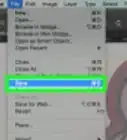
3Click File in the menu bar at the top.
- Click Place
- Click a raster image file (.jpeg, .jpg, .png, .gif, .bmp, etc) to select it.
- Click Place.
-
4Select the raster image. To do so, click the Selection tool in the toolbar. It has an icon that resembles a black mouse cursor. Click the selection tool and then click the raster image in your Illustrator file to select it.
-
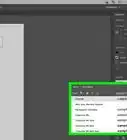
5Open the Image Trace window. Use the following steps to open the Image Trace window:
- Click Window in the menu bar at the top.
- Click Image Trace.
- If you are using an older version of Adobe Illustrator, instead click Object in the menu bar, followed by Live Trace, followed by Tracing Options.
-
6Check the "Preview" box. It's in the lower-left corner of the "Image Trace" window. This allows you to view the results of the image trace before you apply it.
-
7Select an image preset (optional). If you want to make things easier, you can select a preset which will set all the image trace settings for you. Use the drop-down menu next to "Presets" to select a preset. Your options include the following:[1]
- High Fidelity: This preset preserves as many colors as possible. This is used for creating photo-realistic images, but may be taxing on your computer's processor.
- Low Fidelity: This preset reduces the amount of color in the final trace. This is good for creating a simplified photo-realistic image.
- 3 Colors: This limits the number of colors in the final trace to 3. This is a good preset for logos or drawings that only have a few colors.
- 6 Colors: This limits the number of colors in the final trace to 6. This is good for more complex logo designs as well as some cartoon drawings.
- 16 colors: This limits the number of colors in the final trace to 16. This is good for cartoon images that have a wide variety of colors.
- Shades of Grey: This creates a greyscale image trace, which includes black and white, and shades of grey to shade the image.
- Black and White: This creates an image that only uses black and white. There are no shades of grey with this option.
- Outline: This creates an image that is traced with black outlines.
-
8Select a view mode. This selects how the image preview will look in your Illustrator file. Use the drop-down menu next to "View" to select a preview mode. Your options are as follows:
- Tracing Results: This displays a preview that looks exactly like the image after it has been traced.
- Tracing Results with Outlines: This displays the tracing results with outlines around the shapes highlighted.
- Outlines: This only displays the outlines around the shapes that are traced.
- Outlines with Source Image: This displays the outlines that are traced around the shapes with the original raster image below the outlines.
- Source Image: This only displays the original raster image that is being traced.
-
9Select a mode. This selects a color mode for the traced image. Use the drop-down menu next to "Mode" to select a color mode. Your options are as follows:[2]
- Colors: This produces a colored image. When this mode is selected, a slider bar appears below the "Pallete" drop-down menu that allows you to select how many colors you want to allow in your image trace.
- Grey: This produces a greyscale image that consists of black and white with shades of grey. When this mode is selected, a slider bar appears below the "Pallete" drop-down menu that allows you to select how many shades of grey you want to allow in your image trace.
- Black and White: This produces an image that only uses black and white. There are no shades of grey. When this option is selected, you can use the slider bar next to "Threshold" to adjust at which color value colors change from black to white.
-
10Select a color palette (optional). Use the drop-down menu next to "Palette" to select a color palette. This option is only available if you have selected "Color" or "Greyscale" mode. The palette options are as follows:
- Automatic: This automatically selects a color palette from the traced image.
- Limited: This option selects a limited number of colors from the source image to create a traced image to use in the color palette.
- Full Tone: This option uses the full range of colors from the source image to create a traced image.
- Document Library: This option allows you to select a pre-existing color palette from a list of palettes.
-
11Use Advanced Options to fine-tune the traced image (optional). If you find the traced image doesn't look quite right, you can click Advanced Options to expand the Advanced Options menu. Then use the slider bars to adjust the advanced options. The advanced options are as follows:
- Paths: Use the slider bar next to "Paths" to adjust the path settings. The higher the path settings, the shorter the distance between the traced shapes and the original raster image.
- Corners: Use the slider bar next to "Corners" to adjust the corner settings. This adjusts how likely a sharp bend will turn into a corner point.
- Noise: Use the slider bar next to "Noise" to specify how much a pixel area is ignored by tracing. A higher value results in less noise. Select a higher setting for higher resolution images and a lower setting for lower resolution images.
-
12Select a tracing method. There are two tracing methods you can select under the "Advanced Options" menu. They are as follows:
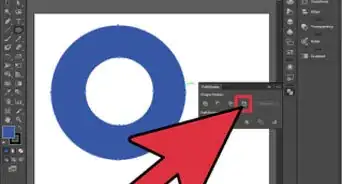
- Abutting: This option has an icon that resembles a circle cut out of a square. This method traces shapes next to each other. The path of one shape matches the path of it's neighboring shape. No shapes overlap.
- Overlapping: This option allows shapes to be created on top of shapes.
-
13Select a creation method. Click the checkboxes next to "Create" to select a creation method in the Advanced Options menu. The options are as follows;
- Fills: Check the checkbox next to "Fills" to turn regions filled with color into traced fill shapes.
- Strokes: Click the checkbox next to "Strokes" to add a stroke line around shapes that are traced in the shape. Use click the arrows below the "Stokes" checkbox to adjust the thickness of the stroke.
- Snap Curves To Lines: Click the checkbox next to "Snap Curves to Lines" to specify if lines that are slightly curved are rendered as a straight line.
- Ignore Whites: Click the checkbox next to "Ignore Whites" if you want white areas of the original image to be ignored in the trace. Check this option if you don't want a white background to be rendered as part of the traced image.
-
14Click Trace. It's in the lower-right corner of the Image Trace window. This converts the raster image into a traced image.
- If you are not satisfied with the results of the traced image, select the traced image with the Selection tool. Click Object in the menu bar at the top and click Image Trace. Click Release Trace to discard the traced image in place of the original raster image.
-
15Expand the traced image. If you are satisfied with the traced image, you can expand it to convert it into standard vector shapes that can be edited with the Illustrator tools. Use the following steps to expand the traced image:
- Use the Selection tool to select the traced image.
- Click Object in the menu bar at the top.
- Click Image Trace
- Click Expand.
Advertisement


References
About This Article