X
This article was written by Jack Lloyd. Jack Lloyd is a Technology Writer and Editor for wikiHow. He has over two years of experience writing and editing technology-related articles. He is technology enthusiast and an English teacher.
This article has been viewed 2,843 times.
This wikiHow teaches you how to update your Apple Watch to the most recent operating system. Unfortunately, you can't update your Apple Watch from within the Apple Watch's settings—you'll need to use a paired iPhone to transfer the update onto your Apple Watch. This can take several hours to accomplish, so make sure you're updating when you have plenty of time to spare.
Steps
-
1Make sure your iPhone is paired with your Apple Watch. If your iPhone isn't connected to your Apple Watch, you won't be able to update your Apple Watch.
- Your iPhone's Bluetooth must also be on for this to work. If your iPhone's Bluetooth isn't on, swipe up from the bottom of the screen and tap the white or grey "Bluetooth" icon to enable it.
-
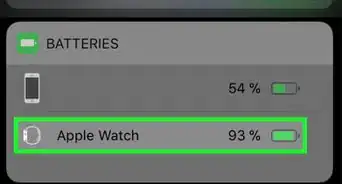
2Charge your Apple Watch to over 50 percent. Your Apple Watch won't accept an update until it's at least 50 percent charged.
- You can check your Apple Watch's battery life by waking up the Watch face screen, swiping up from the bottom of the screen, and reviewing the percentage in the upper-left side.
Advertisement -
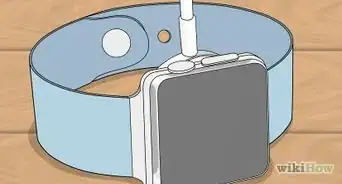
3Place your Apple Watch on its charger. If you haven't yet done so, place your Watch on its charger so that you can install the update.
-
4Make sure your iPhone is connected to Wi-Fi. Your Apple Watch must be connected to Wi-Fi, which means your iPhone also must be connected to Wi-Fi. If your iPhone isn't connected to a network, do the following:
- Open your iPhone's Settings.
- Tap Wi-Fi.
- If necessary, turn on Wi-Fi by tapping the white "Wi-Fi" switch at the top of the page.
- Select a network to connect to, then enter the password and tap Join.
-
5Open your iPhone's Watch app. Tap the Watch app icon, which resembles a side-view of an Apple Watch on a black background.
-
6Tap My Watch. It's a tab in the bottom-left corner of the screen.
-
7Scroll down and tap General. This option is in the middle of the page.
-
8Tap Software Update. It's near the top of the page. Doing so will open the update page.
-
9Wait for your iPhone to finish searching for updates. This may take a few minutes; if an update is available, it will download onto your iPhone, which may take an additional few minutes.
- If no update is available, your iPhone will display a message that says "Your software is up to date" in the middle of the page.
-
10Tap Download and Install. It's in the middle of the page.
-
11Enter your iPhone's passcode. When prompted, type in the code you use to unlock your iPhone.
-
12Tap Agree if prompted. This option is usually at the bottom of the screen.
-
13Allow your Apple Watch to download the update. Once the update begins, it can take anywhere from half an hour to several hours for the update to push from your iPhone to your Apple Watch.
- If the update fails, you'll receive a prompt on your iPhone. Exit the prompt, then attempt to reinstall the update. You may need to do this several times before the update will install.
- Once you see the Install option appear, you can proceed.
-
14Tap Install. It's near the bottom of your iPhone's screen. Your Apple Watch will begin updating; when the update is finished, you'll see a notification on your iPhone, and your Apple Watch may restart.Advertisement


Warnings
- Your iPhone can quickly overheat if you use other apps while your Apple Watch is updating.Thanks!
- If you turn off your Apple Watch, disable your iPhone's Bluetooth, or turn off your iPhone, the update will usually reset.Thanks!
Advertisement


About This Article
Advertisement