X
wikiHow is a “wiki,” similar to Wikipedia, which means that many of our articles are co-written by multiple authors. To create this article, volunteer authors worked to edit and improve it over time.
The wikiHow Tech Team also followed the article's instructions and verified that they work.
This article has been viewed 63,357 times.
Learn more...
Updating your graphics driver can help resolve existing software problems and enhance your experience as a user. In most cases, you can update your graphics driver via routine automatic or manual software updates.
Steps
Method 1
Method 1 of 3:Updating Graphics Drivers Automatically in Windows
Method 1
-
1Click on the “Start” button.
-
2Type “update” into the search box and select “Windows Update” from the available options. The Control Panel will open.
-
3Click on “Check for updates” in the left pane of Control Panel. A list of available updates will display on-screen.
-
4Review the list of updates to find updates for hardware devices, including your graphics card.
-
5Place a checkmark next to the graphics driver that needs updating, then click on “OK.”
-
6Click on “Install updates.” Windows will update your graphics driver.[1]


Method 2
Method 2 of 3:Updating Graphics Drivers Manually in Windows
Method 2
-
1Click on the “Start” button and select “Control Panel.”
-
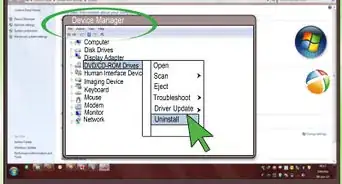
2Click on “System and Security,” then click on “Device Manager.”
-
3Review the list of hardware categories to find the name of your graphics card.
-
4Double-click on the name of your graphics card.
-
5Click on the “Driver” tab, then click on “Update Driver.”
-
6Follow the on-screen prompts to update your graphics driver manually.


Method 3
Method 3 of 3:Updating Graphics Drivers on Mac OS X
Method 3
-
1Click on the Apple menu and select “App Store.”
- If using an earlier version of Mac OS X, select “Software Update.”
-
2Click on “Updates” at the top of the App Store window. A list of all available updates will display on-screen.
-
3Click on “Update All,” or click on “Update” to the right of “Software Update.” Your computer will update your graphics driver as needed.[2]


Community Q&A
-
QuestionHow do I install updated drivers?
 Community AnswerTry uninstalling them from the Control Panel's Programs menu. On Windows 10, they can also be uninstalled through Settings->Applications. If all else fails, you can use DDU (Display Driver Uninstaller) to get rid of video drivers that won't normally uninstall. Note that DDU has to be run in Safe Mode, and only as a last resort.
 -
QuestionCan I install free update drivers?
 Community AnswerYes, your graphics manufacturer should have software available. For NVIDIA, you can use GeForce Experience. For Intel, Intel driver update utility.